Core Plugin Functionality
This guide covers the main CoreVideo OBS plugin workflows. It intentionally focuses on the OBS plugin, ZoomObsEngine, Zoom source assignment, control APIs, audio routing, talkback, and ISO recording.
Current Windows release: v0.1.49. macOS Apple Silicon beta: v0.1.45-beta.2, available as a signed and notarized installer on the download page. Talkback is unavailable on macOS. The Mac package was built against OBS 32.2.1; use that version or newer.
One naming quirk to get out of the way: the OBS sources this plugin registers are called CoreVideo ..., but its docks and Tools menu entries are still called Zoom .... Both are this plugin.
Media Architecture
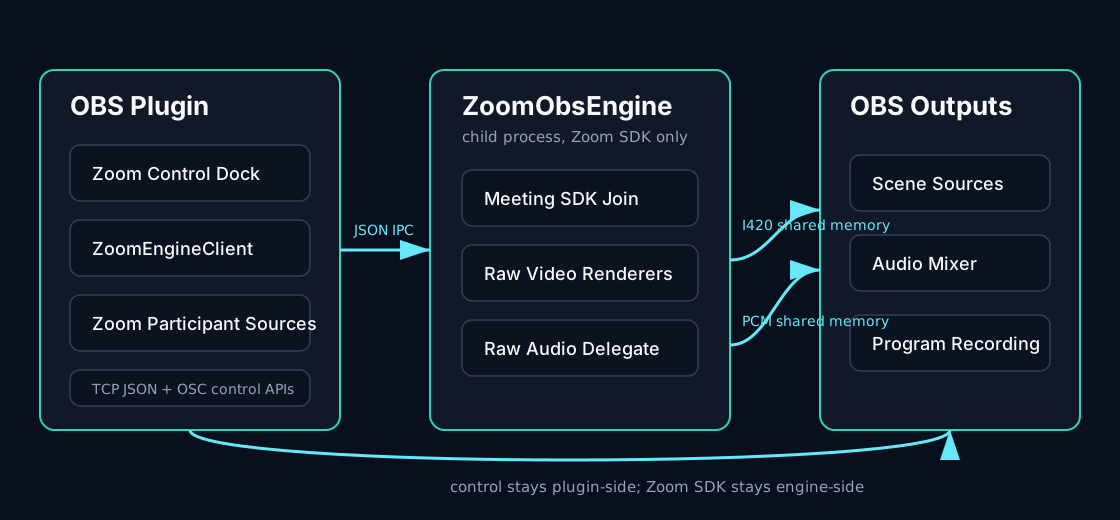
CoreVideo keeps all Zoom Meeting SDK access inside the lightweight ZoomObsEngine helper process. The OBS plugin starts the engine, joins the meeting, and sends subscription requests over JSON IPC. Video and audio payloads move through named shared memory so large frames are not copied through the IPC pipe.
The plugin-side ZoomSource reads the shared memory frame, outputs it into OBS, and forwards the same copied buffer to optional plugin-side services such as ISO recording. This keeps the engine minimal and makes OBS/plugin features easier to test independently from the Zoom SDK.
Current limitation (high feed counts): All video frames travel as CPU I420 through shared memory. At 8+ concurrent 1080p sources this creates substantial memory bandwidth pressure due to multiple per-subscription copies. See ROADMAP.md (Large-meeting capacity guidance) for exploration of GPU texture sharing (Spout on Windows, Syphon on macOS) as a lower-CPU alternative transport in the future.
What It Looks Like in OBS
The CoreVideo plugin is operated from inside OBS. These diagrams mirror the current core plugin controls: the Zoom Control dock, regular OBS scenes/sources, the Active Speaker Director controls, the dockable profile-oriented Zoom Output Manager, and the CoreVideo Participant source properties. Exact styling can vary by OBS theme and platform, but the controls and labels should match the current plugin. This guide intentionally describes the OBS plugin path; optional Sidecar control-surface features are tracked separately in the roadmap.
The plugin docks each have a matching Tools menu entry that focuses them: Zoom Control, Zoom Output Manager, Zoom Diagnostics, Zoom ISO Recorder, and (v0.1.45 and later) Zoom Talkback. The Talkback dock is unavailable on macOS. Tools > Zoom Plugin Settings opens the settings dialog, which is where Zoom sign-in lives.
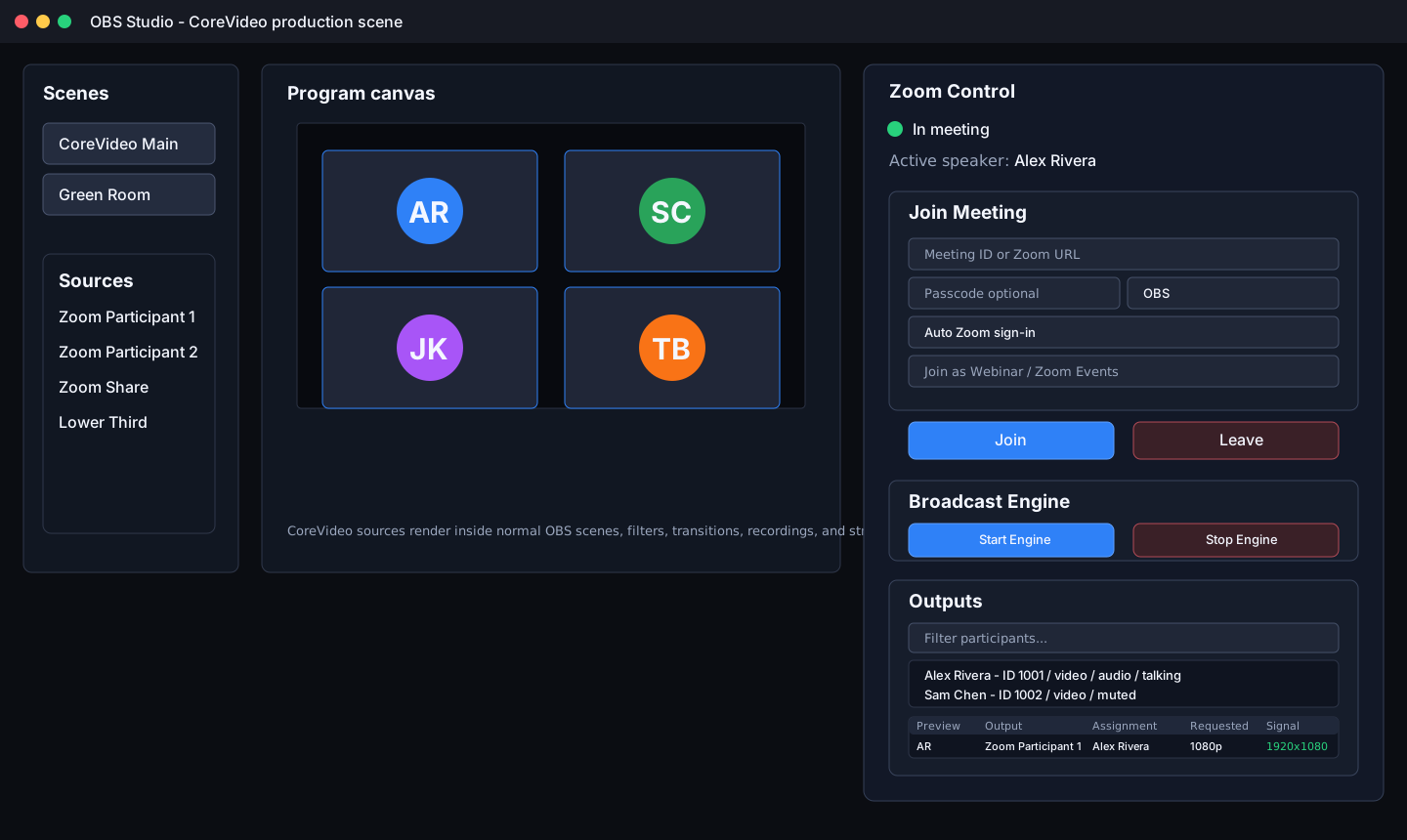
The Zoom Control dock joins and leaves meetings, starts and stops raw media, shows meeting state, lists participants, exposes Active Speaker Director controls, and opens the Output Manager for source assignment without leaving OBS.
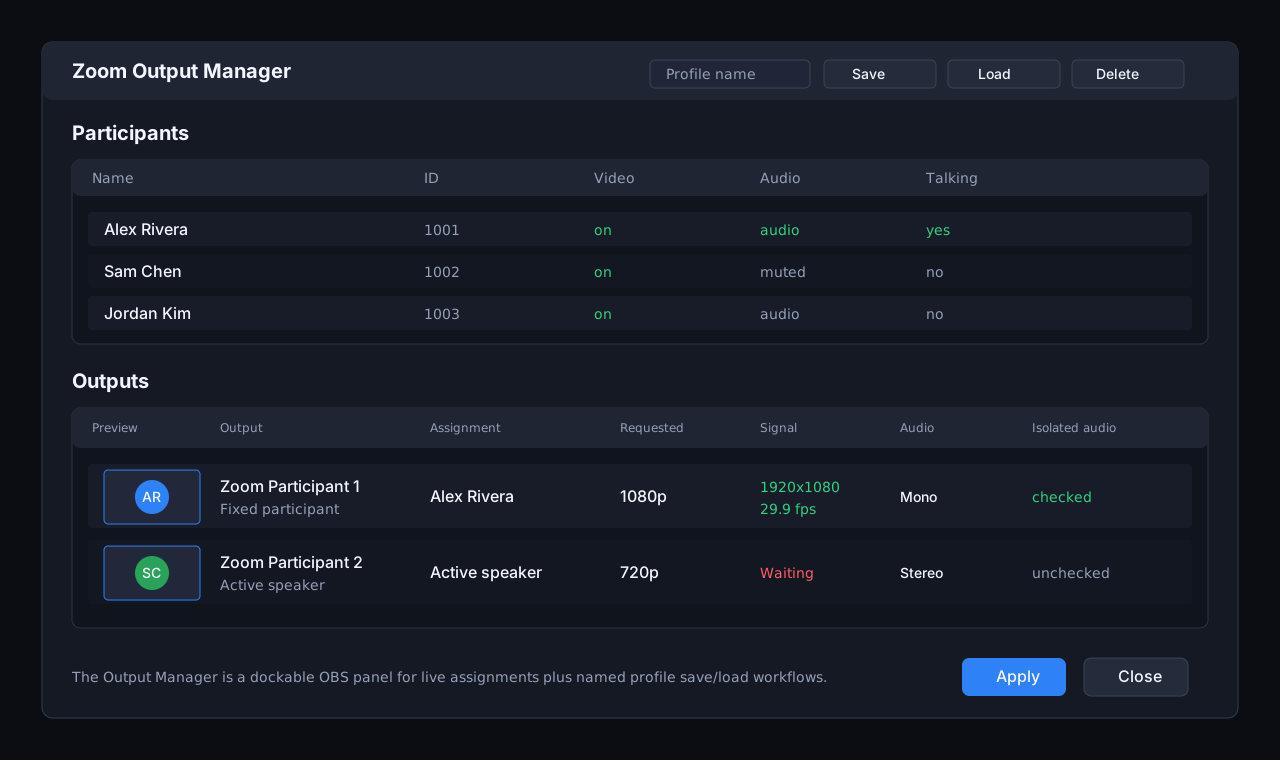
The dedicated Zoom Output Manager is the primary assignment surface. It supports profile save/load workflows and exposes requested resolution, observed signal, frame rate, assignment mode, screen-share/spotlight roster markers, and audio routing information for each output. The assignment menu exposes fixed participants, active speaker, screen share, and Spotlight 1-8 so an eight-feed show can be routed without opening individual source properties. Active-speaker, spotlight, and screen-share routing gaps are reported as specific health states, so operators can tell the difference between "waiting for the next directed speaker" and a stale or missing video feed. It is a persistent OBS dock, so operators can keep assignments, live previews, and feed health visible while working in normal OBS scenes. Profile loading reports matched outputs and any saved source names that are not present in the current OBS scene/source set before the operator clicks Apply.
Two columns exist for audio timing: Delay (embedded) and A/V Offset (embedded). Both act on a video source's own embedded audio track and neither touches the dedicated CoreVideo Audio sources - see the Audio Routing section below. Hide participants without video filters the participant table, the output assignment lists, and the participant source picker; someone with their camera off cannot be routed to an output or a tile at all. It never hides a participant who is already assigned, so switching a camera off cannot make a picker lose its own selection. Audio source pickers are deliberately unaffected - a camera-off participant is often exactly who you want a dedicated audio source for.
Open the Zoom Diagnostics dock, or use Tools > Zoom Diagnostics to focus it, during a live session to see requested versus observed resolution, FPS, frame age, stale and quality retry counters, and the latest ZoomObsEngine debug events. This is the fastest way to see whether a source is waiting for frames, receiving a lower-than-requested feed, or being resubscribed by recovery logic. Use Create Support Bundle from this dock to write a redacted troubleshooting bundle with engine status, output health, recent debug events, plugin settings with tokens removed, ISO recorder and FFmpeg encoder/session status, runtime/package validation, and the latest OBS log when available. Bundles are written to %APPDATA%\obs-studio\plugin_config\obs-zoom-plugin\support-bundles\CoreVideo-support-<timestamp>\, and on Windows CoreVideo also creates a .zip beside that folder when PowerShell is available; the dialog reports both paths. OBS log data is written as a redacted excerpt of the last 500 lines; OAuth codes, access tokens, refresh tokens, ZAK/JWT values, passcodes, client secrets, and authorization headers are removed before the bundle is written. Meeting and participant names, participant IDs, and ISO file paths are not redacted - read the bundle before attaching it to a public issue.
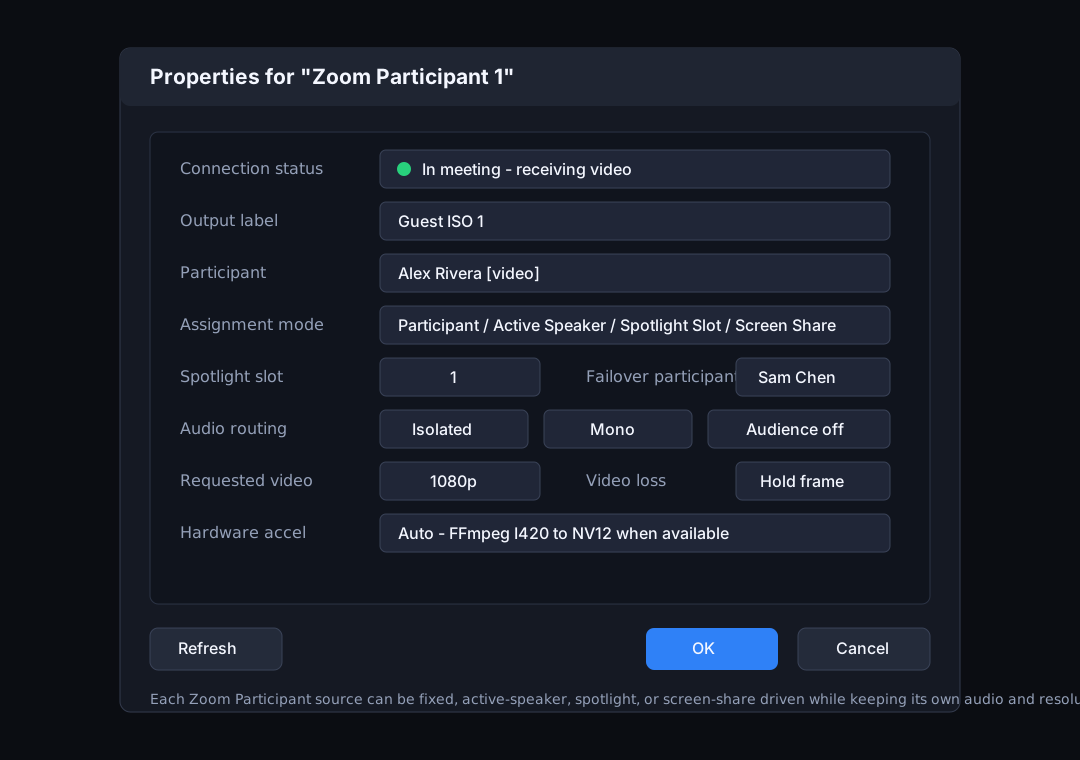
Each CoreVideo Participant source can be configured independently for fixed participants, active speaker, spotlight slot, screen share, isolated audio, audience audio, resolution, video-loss behavior, and hardware conversion.
Joining Meetings
- Open OBS.
- Sign in once from Tools > Zoom Plugin Settings with Sign in with Zoom. There is no sign-in button on the Zoom Control dock.
- Open Tools > Zoom Control.
- Enter a Zoom meeting ID or full Zoom join URL, a passcode if the meeting has one, and a display name.
- Leave the join-token dropdown on Zoom sign-in.
User ZAKandApp privilege tokenare for tokens Zoom support has issued you specifically; the token field stays disabled and reads "Automatic from Zoom sign-in" otherwise. - Tick Join as Webinar / Zoom Events for a webinar - the SDK uses a different entry point for those.
- Click Join.
- Use the visible Zoom Meeting SDK window for waiting-room admission, self video/audio, and normal meeting controls. CoreVideo waits out a waiting room rather than giving up on it (v0.1.44); the two-minute join watchdog holds its window open for as long as the wait lasts, and is armed by this Join button only - a join issued over the control API is not watched.
- Click Start Engine after joining to request raw media from Zoom.
Published builds use the embedded CoreVideo broker: the browser sign-in uses Zoom Public Client OAuth + PKCE against https://corevideo.iamfatness.us/oauth/start, CoreVideo fetches the signed-in user's ZAK, and the helper authenticates the Meeting SDK with the embedded Marketplace Public Client ID as AuthContext.publicAppKey. End users do not enter client IDs or secrets. The site itself is corevideo.io; both names route to the same worker, and the iamfatness host is the one compiled into shipped builds.
Source Assignment
Add one or more CoreVideo Participant sources in OBS. Each source can follow a different assignment mode:
| Mode | Behavior | Common Use |
|---|---|---|
| Participant | Fixed Zoom participant ID | Dedicated guest ISO |
| Active Speaker | Follows the current active speaker | Host/speaker-follow shot |
| Spotlight Slot | Follows Zoom spotlight position 1-8 | ZoomISO-style production |
| Screen Share | Follows active screen share | Slides/demo capture |
Each output reports observed resolution and frame rate through the output manager and TCP list_outputs command.
Screen Share Workflow
To capture slides, demos, or a shared desktop, add a CoreVideo Screen Share source or set any CoreVideo Participant source to Assignment > Active screen share. The source follows Zoom's active share feed and shows a placeholder when no participant is sharing.
The Zoom Output Manager assignment menu also includes Screen share. When a share is active, the menu label includes the sharing participant name. The TCP list_outputs response for screen-share outputs includes:
{
  "assignment_mode": "screen_share",
  "screen_share_available": true,
  "screen_share_participant_id": 123456,
  "screen_share_participant_name": "Alex Rivera",
  "observed_width": 1920,
  "observed_height": 1080,
  "observed_fps": 30.0
}
OSC parity is available for hardware panels and show-control systems: /zoom/status replies with /zoom/status/screen_share ,is, subscribers receive /zoom/event/screen_share ,is when the active sharer changes, and /zoom/list_participants emits /zoom/participant/detail packets with the is_sharing_screen flag plus host, co-host, raised-hand, and spotlight state.
For a single directed speaker-follow output, add the dedicated CoreVideo Active Speaker OBS source. It follows the central Active Speaker Director and uses a two-slot handoff internally: the current participant remains visible while the next participant warms on a hidden slot, then the source cuts only after a valid frame is available.
CoreVideo Tiles
CoreVideo Tiles is one OBS source that draws every participant as a gallery wall. Where a participant source is one person, Tiles is the whole grid: it picks the layout for the number of people on screen, and repaints itself as people join and leave. Add it from Sources -> Add -> CoreVideo Tiles.
Every tile is filled, never letterboxed. A tile narrower than the camera feeding it crops the sides rather than adding bars, which is what keeps a wall of mixed cameras looking even.
Filling the wall
| Control | Does |
|---|---|
| Fill mode | Auto - everyone with video fills the wall with whoever currently has video, in roster order. Manual - choose per tile gives you a Tile 1..N dropdown per position, so you place people yourself. |
| Maximum tiles | Upper bound on how many tiles Auto mode will draw. |
| Never show | Participants Auto mode skips — the stage camera, a recording bot, anyone who should never land on the wall. |
| Refresh participant list | Re-reads the roster if someone joined while the properties dialog was open. |
Shape and spacing
| Control | Default | Does |
|---|---|---|
| Tile shape | 16:9 (widescreen) | Shape of every tile: 16:9, 4:3, 5:4, 1:1 (square), 3:4 (portrait), 9:16 (vertical), or Custom ratio. |
| Custom ratio (width / height) | 16:9 | Used only when Tile shape is Custom ratio. |
| Gap between tiles (% of canvas height) | 0.741% | Space between tiles. A percentage of canvas height, so spacing scales with the canvas — 0.741% is the 8 px at 1080p the wall has always used. |
| Margin around the wall (% of canvas height) | 0.741% | Space between the wall and the canvas edge. |
Background
Background colour fills the gutters, the margin, and any canvas the wall does not cover. Background source draws any video-producing OBS source — an Image, a Media Source, a Browser Source — behind the tiles and over that colour; leave it on - none - for colour only. A background source that is deleted, or one that would render itself (the wall, or a scene containing it), falls back to the colour rather than breaking the wall.
Borders and glow
| Control | Default | Does |
|---|---|---|
| Border width | 0 (off) | Border drawn inside each tile's edge. |
| Border colour | black | |
| Corner shape | Square | Square or Rounded. |
| Corner radius | 16 | Shown only when Corner shape is Rounded. |
| Glow size | 0 (off) | Outer glow drawn around each tile, in a pass behind the tiles. |
| Glow colour | white | |
| Glow intensity (%) | 100 | |
| Glow softness (%) | 0 | How gradually the glow falls off. |
Border width and corner radius are clamped against the tile they are drawn on — past half the shorter side there is no interior left — so an extreme value degrades gracefully instead of inverting the tile.
Animating layout changes
| Control | Default | Does |
|---|---|---|
| Animate layout changes | off | Eases the whole wall when the layout changes, instead of jumping on one frame. |
| Animation duration (ms) | 350 | How long the wall takes to settle. 100–1000. |
With it off, the wall behaves exactly as it always has and the animator never runs — this is not a cosmetic setting, it is a different render path.
With it on, a join or a departure re-solves the grid and every tile eases to its new position and size. A departure is not one tile vanishing: five people becoming four turns a 3x2 grid into a 2x2, so every remaining tile moves and resizes regardless, and animating only the tile that changed would leave the most visible part of the change as a hard cut.
Three behaviors worth knowing before you put it on air:
- A newcomer fades in at its final slot rather than flying in from an edge, so tiles never travel across one another to reach their positions.
- A departure reflows immediately — the leaving tile is not held on screen.
- A roster blip reflows the wall out and back. Someone dropping and rejoining within a moment produces a wobble rather than a pop. This is the deliberate trade for the wall never being behind reality.
A tile that is not moving draws through the same even-snapped path it always has, byte for byte. Only a tile actually in motion takes the sub-pixel path, and it returns to the pixel-exact one as soon as it settles.
Per-tile crop
Per-tile crop gives each tile its own crop left % and crop right %, for trimming a participant who is sitting off-centre without touching the others.
Per-participant audio
The wall itself carries no audio. Participant audio scene or group names a scene or group in which the wall creates one Zoom participant audio source per tile, so every person on the wall gets their own fader and their own ISO track. Leave it blank and nothing is created.
Points worth knowing before you switch it on:
- Add that scene or group to every scene. Audio then stays put while you cut between scenes, instead of appearing and disappearing with the wall.
- A nested scene is safer than a group. A group can be dissolved with Ungroup, which scatters the sources inside it.
- Use the audio group on one Tiles source only. If you run a second wall — a panel wall beside a main one — leave its audio field blank. Audio for each person belongs to whichever wall created it, so on a second wall someone who drops off that wall can be left muted while still on screen on the other one, and both walls number their ISO stems from track 2 up, which can put two people on the same stem in the recording. The plugin logs a warning if it sees a second wall with a group set.
Active Speaker Director
The Active Speaker Director is controlled from the Zoom Control dock. It is not just a pass-through of Zoom's raw active-speaker event; it builds CoreVideo's own production decision from the raw speaker signal.
The dock shows:
- Directed speaker: the participant currently being sent to active-speaker outputs.
- Raw speaker: the latest speaker reported by Zoom.
- Candidate speaker: the participant waiting out the sensitivity timer.
- Last speaker: the previously directed participant.
- Status line: whether the director is waiting, holding, evaluating a candidate, or locked by manual supersede.
- Manual take/release: an operator supersede that holds a participant on air until released.
Timing controls:
| Setting | Default | Behavior |
|---|---|---|
| Sensitivity | 500 ms | Candidate must keep speaking this long before switching. |
| Hold | 2000 ms | Minimum time to stay on the current directed speaker after a cut. |
TCP examples:
{"cmd":"speaker_director_status"}The response includes the legacy numeric IDs plus resolved participant objects for directed_speaker, raw_speaker, candidate_speaker, last_speaker, manual_speaker, excluded_participants, and a status value such as holding, candidate_pending, manual_supersede, or waiting_for_speaker. Subscribed TCP clients also receive speaker_director_changed events when the directed, candidate, or manual speaker changes.
{"cmd":"speaker_director_configure","sensitivity_ms":650,"hold_ms":2500}{"cmd":"speaker_director_take","participant_id":123456}{"cmd":"speaker_director_release"}Audio Routing
CoreVideo has two independent audio paths, and knowing which one you are on decides what guarantees you get. No code connects them.
The dedicated path is the audio-only OBS sources: CoreVideo Participant Audio, CoreVideo Active Speaker Audio, and the legacy CoreVideo Audience Audio. These drain the engine's 8-slot shared-memory ring in order, derive timestamps from a running sample count rather than from arrival, count and report anything they lose (list_audio_sources -> overrun_slots, which should stay at 0), and honour the global audio delay trim. Route these to program for anything that matters.
The embedded path is the audio track a CoreVideo video source publishes alongside its picture, configured from that source's own properties. It reads the newest buffer only, is stamped at arrival, and has no loss accounting. It is convenient, not lossless.
Audio modes for a video source's embedded track:
| Routing | Behavior |
|---|---|
| Mixed | Full meeting mix |
| Isolated | Only the assigned participant's one-way audio (Isolate selected participant's audio (suppress mix)) |
| Audience | Residual one-way audio for participants not assigned to isolated outputs |
Use Isolated when you need the assigned participant only. Audience is kept for existing shows - its OBS source is labelled (legacy) - as a remaining-room or overflow mic channel after dedicated isolated sources have claimed named participants.
Delay and the measured A/V offset
Video is the slower path in any software production chain, so audio arrives at OBS ahead of its matching picture and needs delaying to line back up. There is one control per path, and each moves only its own:
- Tools > Zoom Plugin Settings > Audio > Audio delay (dedicated sources) is a single global trim, 0-500 ms, for every dedicated CoreVideo Audio source. It takes effect on the next audio buffer, including on sources already running.
- The Output Manager's per-row Delay (embedded) trims one video source's own embedded track, and A/V Offset (embedded) is the measured number to trim it against. The offset is
video_latency_us - audio_latency_usmeasured from engine capture to OBS publish: positive means audio is early by that many milliseconds, which is what to dial into Delay. It reads-until both latencies have actually been measured.
Delay can only ever push audio later; it can never advance it. Trim off air - lowering a delay pushes the timestamp backward once and briefly glitches the affected source.
The same field is settable over TCP. Omit it entirely on unrelated calls, such as a plain reassignment, or it resets to 0:
{"cmd":"assign_output","source":"CoreVideo Participant 1","participant_id":123456,"audio_delay_ms":80}Silence is a Zoom property, not a dropout
Zoom only calls audio back for a participant who is currently making sound, so a silent stretch produces no buffers at all rather than buffers of silence. Two consequences CoreVideo handles and one it cannot: the master clock resyncs rather than letting a quiet participant walk steadily into the past; the first buffer after a run of true digital silence is ramped in over a few milliseconds so the resumption does not click; and speech the far end never sent stays missing.
Talkback (Intercom)
Windows only, v0.1.45 and later. macOS does not implement talkback.
Talkback is private director-to-talent audio carried over Zoom's own talkback channels - the operator can talk to one person, or to everyone, without the meeting or the program mix hearing it. Open it from Tools > Zoom Talkback, or as the Zoom Talkback dock.
The dock is modelled on a Clear-Com/RTS intercom panel rather than on a list of settings: one grid, All talent across the top, then one compact cell per person. A cell is the talk key and the status display at the same time.
Assigning channels first
Zoom channels are created at assignment time, never at key time. A key press only looks its target up in the standing channel set and starts sending, because creating a channel on the press costs a create round trip plus an invite round trip - measured live as the director's first syllable being discarded on every press.
- Press Edit talent. The grid is replaced by a tick-box list of the roster, so exactly one list of people is on screen at a time.
- Tick everyone you may need to talk to.
- Press Assign channels (N), or Clear all channels when nothing is ticked.
- Press Done and read the plan report.
Zoom allows 16 channels and 10 people per channel. The plan report says how many channels are in use, who has a private channel, who has no private channel and must be reached through All talent, and who is on no channel at all and therefore hears nothing. Anyone the budget cannot cover is named rather than silently dropped.
Assignment is not instant. Zoom rate-limits channel and membership calls - undocumented, and refused with SDKERR_TOO_FREQUENT_CALL - so CoreVideo paces every create and every invite at one call per 600 ms. A large talent list can take around twenty seconds to fully provision and confirm. That cost is paid once at assignment and never at key time.
Talent are stored by display name, never by Zoom user ID: IDs are meeting-scoped, so someone who drops and rejoins gets a new one. CoreVideo re-resolves membership from the roster with no operator action.
Keying
- Choose the OBS audio source you talk through in the dock's source combo. No key is pressable until you do. Use a dedicated source with every program track unchecked in Advanced Audio Properties.
- The line under the combo says whether that source is going out on a program track -
Off program (safe), orOn air via track N. The audience will hear this. - Hold a cell to talk. Tick Latch to make one press open the key and the next close it. Whether a press closes an open key is decided from the mode it was opened with, so changing Latch mid-key cannot strand it.
- Only one key is open at a time, anywhere - including a key opened by the control API or Companion, which the dock shows but will not close.
- A short tone confirms open and close, on the engine's confirmed live edge rather than on the button press.
- The banner at the top is the authority on whether you are audible. It reads
Off air,Keying <target>,ON AIR: <target>,Key refused: <target>, orON AIR - BOT MUTED: <target>.
What a cell says
| Cell state | Means |
|---|---|
ready | They have a channel and are in it. |
ON AIR | The key is open and the engine has confirmed it. |
assigning... | The channel ladder is still provisioning. Keys are refused, never half-honoured. |
no channel | The budget could not cover them. Assign channels again with fewer people. |
not in channel | They have a channel but are not in it - most often a different breakout room. |
no talkback | Their Zoom client reported no talkback support, or nothing reaches them. |
some missed | On the All talent cell: the plan is short, so this key does not reach everybody. |
Three delivery rules that are silent in the failure direction
None of these is documented by Zoom. Each was found live, and each fails quietly.
- Talkback delivers only while CoreVideo's own meeting audio is open. Muted,
SendAudioDataToChannelreturns success, members are confirmed, and everyone hears silence. CoreVideo unmutes itself at key time and re-asserts every two seconds in case a host re-mutes it. If Zoom refuses the unmute the key is still allowed - the channels are real and a host can still unmute - but the banner reads ON AIR - BOT MUTED and drops the member tally, because "3 of 3 present" beside "nobody can hear you" is the instrument that made this invisible in the first place. - Talkback reaches only the breakout room the engine is in. A talent in another room shows
not in channeland hears nothing, no matter how healthy the channel looks. - Sends are mono. The SDK accepts stereo and silently delivers nothing, so CoreVideo downmixes at the boundary. Only the sample rates the SDK documents are accepted; anything else is refused loudly rather than resampled.
Channel membership is acoustically neutral until a key is pressed. Zoom appears to create channels already ducked, so CoreVideo sets each channel's background volume to unity at creation, before any invite, and ducks to 30% only while a key is live.
Talkback over the control API
The dock and the TCP control API are the only keying surfaces today - there are no OSC addresses, no Companion actions, and no OBS hotkey for talkback yet.
talkback_nominate and talkback_key are fire-and-acknowledge: the response only confirms the trigger was accepted. The plan outcome arrives asynchronously as "cmd":"talkback_nominate" lines in the OBS log, and is polled through talkback_status.
{"cmd":"talkback_nominate","nominees":["Alex Rivera","Sarah Muller"]}{"cmd":"talkback_key","state":"on","target":"Alex Rivera","source":"Director Mic","mode":"push_to_talk"}{"cmd":"talkback_key","state":"off"}target is "all" or a nominee's display name. mode is push_to_talk (default) or latch. A key opened this way must be renewed with {"cmd":"talkback_renew"} - a surface whose release can be lost in transit has to prove it is still there. {"state":"off"} always succeeds.
{"cmd":"talkback_status"}The reply carries the live key state and a nomination object holding the confirmed plan - who has a private channel, who is uncovered, who is unreachable - plus last_attempt_ok and last_attempt_reason, which describe the most recent attempt separately and can disagree with the confirmed plan without corrupting it.
{"cmd":"talkback_probe","participant":"<display name>"} is a diagnostic, also reachable from the collapsed Diagnostic: talkback probe section at the bottom of the dock. It opens a channel, invites that one participant, sends a three-second 440 Hz tone that they will hear, ducks their meeting audio for its duration, and destroys the channel. It requires host or co-host; a plain participant is refused with SDKERR_NO_PERMISSION.
Companion / Stream Deck
companion/companion-module-corevideo-obs is a Bitfocus Companion module speaking the same TCP control API. It requires Companion v5 or later - earlier builds cap the module API at 1.12 and cannot load it at all.
Actions are zoom_join, zoom_leave, zoom_assign, zoom_assign_spotlight, zoom_assign_screen_share, and zoom_cancel_recovery. Both the output and the participant are dropdowns on zoom_assign, populated from the module's own live state, and the same output picker is on the spotlight and screen-share actions. Participants are offered and stored by name, because Zoom user IDs are meeting-scoped: a button holding a raw ID points at nobody after a rejoin, and at the wrong face once IDs are recycled. The ID is resolved from the name against the live roster at press time; a name not in the meeting resolves to nobody and logs a warning rather than guessing. Raw numeric IDs still work, and buttons built before this change still work through the legacy participant_id option.
There are no Companion actions for talkback yet.
Auto ISO Recording
ISO recording is controlled by the OBS plugin. On macOS, configure and test a working FFmpeg executable in Zoom ISO Recorder first; the package does not bundle FFmpeg.
CoreVideo records one continuous MP4 per Zoom participant ID during Record/Stop. Each file contains H.264 video at 1920x1080, 30 fps and AAC stereo audio at 48 kHz. ISO audio comes from a dedicated one-way subscription for that participant, independent of the OBS source's Mix/Isolated setting. Recording subscriptions do not remove participants from the Audience mix. A muted/silent participant has silence in their MP4; other speakers are never substituted. Choose feeds in the ISO Recorder before starting. Choices are remembered by source UUID; no feeds are selected by default. Unrouted and unselected feeds do not start recordings. A selected feed opens its file only when its first actual audio or video arrives, so an offline route does not produce an empty recording. Incoming video is scaled to fit with black bars when needed. Zoom resolution changes, duplicate OBS sources, camera gaps, and source reassignment do not restart that participant's encoder or create another file. A new Zoom ID after a rejoin is treated as a new participant; display names are not identity keys.
Requirements:
ffmpegmust be available onPATH, or pass an explicitffmpeg_path.- Raw media must be active.
- Sources must be assigned to participant, active speaker, or spotlight modes.
OBS ISO Recorder Panel
Open Tools > Zoom ISO Recorder to manage ISO recording from a separate OBS dock. The panel provides:
- Output folder picker.
- FFmpeg executable field with a test button.
- Video encoder selector for CPU x264, NVIDIA NVENC, Intel Quick Sync, or AMD AMF when the selected FFmpeg build supports that encoder.
- Encoder guidance explaining CPU load, GPU encoder-session limits, and when to fall back to CPU x264 for 8 ISO feeds plus a program stream.
- Safe hardware fallback: if the selected hardware encoder is missing from the FFmpeg build, CoreVideo falls back to
libx264when available and reports the requested encoder, actual encoder, and fallback state. - Also start/stop OBS program recording toggle.
- Start ISO Recording and Stop ISO Recording buttons.
- Feeds to record checkboxes, preserved through routing refreshes and OBS restarts. Selection is fixed for the recording run; stop to change it.
- Live status showing idle/recording and active session count.
- Active session table with source, participant, resolution, video frame count, audio chunk count, combined file path, and FFmpeg error details.
- Recently completed sessions remain in the table after stop so operators can confirm completed MP4 outputs before opening the folder.
The panel uses the same ZoomIsoRecorder backend as the TCP and OSC APIs. It persists the output folder, FFmpeg path, and program-recording toggle in OBS global settings. Recording start is blocked when the selected output volume has less than 2 GB free and warns below 10 GB free.
TCP start example:
{"cmd":"iso_recording_start","output_dir":"C:/Recordings/CoreVideo","ffmpeg_path":"ffmpeg","record_program":true,"source_uuids":["OUTPUT_SOURCE_UUID"]}source_uuids selects routed CoreVideo output sources. Omitting it uses the feed choices saved in the ISO panel; an empty selection is an error. OSC start also uses those saved choices. Multiple selected feeds for one participant share a single participant MP4.
TCP status example:
{"cmd":"iso_recording_status"}TCP stop example:
{"cmd":"iso_recording_stop"}OSC equivalents:
| Address | Type tags | Action |
|---|---|---|
/zoom/iso/start | optional ,ssi | Start ISO recording with optional output directory, video encoder, and record-program flag |
/zoom/iso/status | none | Reply with active sessions, completed sessions, requested/actual encoder, fallback, hardware, disk warning, and recorder warning |
/zoom/iso/stop | none | Stop ISO recording |
Output files are written as:
*.mp4containing H.264 video and AAC audio for one participant.*.mp4.ffmpeg.logcontaining encoder diagnostics.
Timing
A worker per participant uses a monotonic clock to emit 30 video frames and 48,000 audio samples per second. It holds the last picture during video gaps (or black before the first frame) and inserts silence during audio gaps. Input resolution and audio format changes are conformed on the worker without restarting the output. Files start on first media delivery. Participants first encountered later have a start_offset_ms in status.
Timestamped video and PCM audio travel over one internal Matroska pipe to FFmpeg, which writes a single fragmented MP4. There are no separate temporary media files and no merge step at Stop. Producer buffers and encoder queues are bounded. An encoder failure is reported on that participant; it does not start an automatic replacement file. Hardware availability is tested by encoding an actual frame before recording starts. Automatic placement uses working NVENC, QSV, AMF, then libx264, accounting for OBS's NVENC sessions.
When record_program is true, CoreVideo also starts the normal OBS program recording and stops it when ISO recording stops, but only if CoreVideo started that OBS recording session.
TCP Control Examples
All TCP commands are newline-delimited JSON sent to 127.0.0.1:19870.
List participants:
{"cmd":"list_participants"}List outputs:
{"cmd":"list_outputs"}Output snapshots include requested resolution, observed resolution/FPS, stale state, last frame age, subscribed age for outputs still waiting on their first frame, recovery attempts, automatic quality-upgrade attempts, and remaining retry cooldowns.
The Cancel Recovery button, TCP recovery_cancel, and OSC /zoom/recovery/cancel all use the same stop path: CoreVideo cancels pending reconnect timers, stops the engine process, and clears the stored join session so a canceled retry loop cannot restart itself.
Force a retry for stale outputs:
{"cmd":"recover_stale_outputs","force":true}Force a quality retry for live outputs below their requested resolution:
{"cmd":"upgrade_low_quality_outputs","force":true}Quality retries are skipped when a feed is already observed at 1080p.
Assign a source to a fixed participant with isolated mono audio:
{"cmd":"assign_output_ex","source":"CoreVideo Participant 1","mode":"participant","participant_id":123456,"isolate_audio":true,"audio_channels":"mono","video_resolution":"1080p"}Assign a source to active speaker:
{"cmd":"assign_output_ex","source":"CoreVideo Participant 2","mode":"active_speaker","audio_channels":"mono","video_resolution":"1080p"}Inspect and control the Active Speaker Director:
{"cmd":"speaker_director_status"}{"cmd":"speaker_director_configure","sensitivity_ms":650,"hold_ms":2500}{"cmd":"speaker_director_take","participant_id":123456}{"cmd":"speaker_director_release"}Assign a source to spotlight slot 1:
{"cmd":"assign_output_ex","source":"CoreVideo Participant 3","mode":"spotlight","spotlight_slot":1,"audio_channels":"mono","video_resolution":"1080p"}OSC Control Examples
List participants and outputs:
/zoom/list_participants
/zoom/list_outputs
/zoom/list_assignments
/zoom/list_assignments replies with one /zoom/output/assignment message per CoreVideo source:
/zoom/output/assignment "CoreVideo Participant 1" "participant" 123456 "Alex Rivera" 123456 "Alex Rivera" 1 0Arguments are source, mode, configured participant ID/name, resolved participant ID/name, spotlight slot, and failover participant ID. Active-speaker sources resolve to the current directed speaker.
Retry stale video outputs:
/zoom/recover_stale_outputs 1Retry low-quality video outputs:
/zoom/upgrade_low_quality_outputs 1Inspect and control the Active Speaker Director:
/zoom/speaker_director/status
/zoom/speaker_director/configure 650 2500 1 123456 789012
/zoom/speaker_director/take 123456
/zoom/speaker_director/release
The OSC status request preserves the original numeric /zoom/speaker_director/status reply and also sends /zoom/speaker_director/status/detail ,iiiiiiiiiiiis, including directed, raw, candidate, last, manual, sensitivity, hold, require-video, candidate elapsed, hold remaining, two exclusion IDs, and status text such as holding, candidate_pending, or manual_supersede.
Assign a source:
/zoom/output/assign_ex "CoreVideo Participant 1" "participant" 123456 1Assign active speaker:
/zoom/assign_output/active_speaker "CoreVideo Participant 1"Set isolated audio:
/zoom/isolate_audio "CoreVideo Participant 1" 1Start and stop ISO recording:
/zoom/iso/start "C:/Recordings/CoreVideo" "h264_nvenc" 1
/zoom/iso/status
/zoom/iso/stop
Troubleshooting
| Symptom | Check |
|---|---|
| Color bars only | Confirm the meeting is joined, raw media is started, and the source has a participant/role assignment. |
| No isolated audio | Confirm the source is assigned to a real participant and isolate_audio is true. |
| ISO recording does not start | Confirm ffmpeg is on PATH or provide ffmpeg_path; read the session's .ffmpeg.log. |
| External meeting rejected | Confirm the Meeting SDK app/client ID is approved or published for external meeting joins. |
| Plugin cannot launch engine | Confirm ZoomObsEngine.exe and the Zoom SDK runtime DLLs are installed under obs-plugins/64bit/zoom-runtime. The plugin looks there first, then beside its own DLL. A DLL-only copy is the most common self-inflicted failure - install both binaries as a pair. |
| Every source black after a breakout room | Zoom revokes the raw-recording privilege on breakout entry without disconnecting you. Re-requested automatically since v0.1.40; on older builds, stop and start raw media. |
| Audio breaks up on every source at once | Look for an orphaned ZoomObsEngine.exe from a previous OBS session ghost-writing the same shared memory. Swept automatically at launch since v0.1.41. |
| Talkback key says live but nobody hears | Read the banner. ON AIR - BOT MUTED means Zoom refused the unmute; a cell reading not in channel usually means a different breakout room. |
| Join sits on "joining" forever | Either a waiting room (normal - CoreVideo waits) or your own account already hosting elsewhere, which now fails loudly with account_busy_elsewhere / 909001. |
Full troubleshooting, log collection, and the support-bundle walkthrough are on the Support page.