CoreVideo
An OBS Studio plugin that captures live Zoom meeting video, audio, screen share, and Zoom interpretation audio channel capture — with a dockable control panel, auto-reconnect, ZoomISO-style assignment modes, hardware video acceleration, and TCP/OSC control APIs for full broadcast automation.
Introduction
CoreVideo integrates the Zoom Meeting SDK into OBS Studio with no screen capture or virtual camera required. It receives raw I420 video and 48 kHz PCM audio from any meeting participant, performs optional hardware-accelerated color conversion, and pushes frames into OBS as native sources.
The ZoomObsEngine child process hosts all SDK access in isolation,
communicating with the plugin over JSON IPC (named pipes on Windows,
Unix domain sockets on macOS/Linux) with frame data flowing through named
shared memory. The plugin contains no Zoom SDK linkage.
Joining a meeting is driven by the built-in Zoom Control dock (or the TCP/OSC APIs). Once in a meeting, sources can follow a fixed participant, the active speaker, a ZoomISO-style spotlight slot, or the active screen share — and switch automatically with a configurable failover participant if the primary leaves.
A ZoomReconnectManager automatically re-joins after engine crashes, network drops, or unexpected disconnects, with exponential back-off and a cancel-at-any-time UI in the dock.
For Zoom App Marketplace compliance and attributed joins, ZoomOAuthManager
uses the CoreVideo HTTPS broker to run Zoom Public Client OAuth with PKCE
and receive a short-lived broker token through the bundled
corevideo://oauth/callback helper. Before each join, the plugin
refreshes OAuth tokens through the broker when needed, fetches the
signed-in user's ZAK, and starts the Meeting SDK helper with the embedded
Marketplace Public Client ID as AuthContext.publicAppKey.
The plugin also exposes TCP and OSC control APIs for external production
automation, including source assignment, meeting control, and ISO recording.
Features
Raw Video Capture
I420 YUV per participant. Selectable 360p / 720p / 1080p resolution. Hardware-accelerated color conversion (CUDA, VAAPI, VideoToolbox, QSV).
Video Loss & Placeholder
Hold last frame or show black on feed drop. Shows a color-bar placeholder when not yet subscribed.
Raw Audio Capture
48 kHz PCM, mono or stereo, with per-participant audio isolation and mixer routing.
Interpretation Audio Capture
Dedicated OBS source for existing Zoom interpretation audio channels in the meeting.
Screen Share Capture
Source type that follows active screen-share feed via ScreenShare assignment mode.
Spotlight / ZoomISO Modes
Assign a source to Spotlight 1-8, exactly like ZoomISO. Engine resolves which participant owns each slot.
Active Speaker Mode
Sensitivity (ms) + hold-time (ms) debounce with liveness guard, supersede logic, and failover participant.
Failover Participant
Configure a secondary participant ID that activates automatically when the primary leaves the meeting.
Auto-Reconnect
Automatic re-join after engine crash, network drop, or disconnection — exponential back-off with cancel UI.
Webinar Support
Join Zoom Webinars using the dedicated SDK entry point — set the Webinar checkbox in the control dock.
Rich Participant Roster
Live list with video, mute, talking, host, co-host, raised hand, spotlight slot, and screen-sharing state.
Per-Participant Audio
Standalone OBS audio source per meeting participant; audio mixed into OBS audio mixer.
Control Dock
Dockable Qt panel with join/leave, state indicator, Active Speaker Director controls, recovery countdown, and Output Manager launch.
Diagnostics
The dockable Zoom Diagnostics panel shows requested versus observed resolution, FPS, frame age, retry counters, recent engine debug events, ISO/FFmpeg recorder status, and redacted support bundle export.
Dockable Output Manager
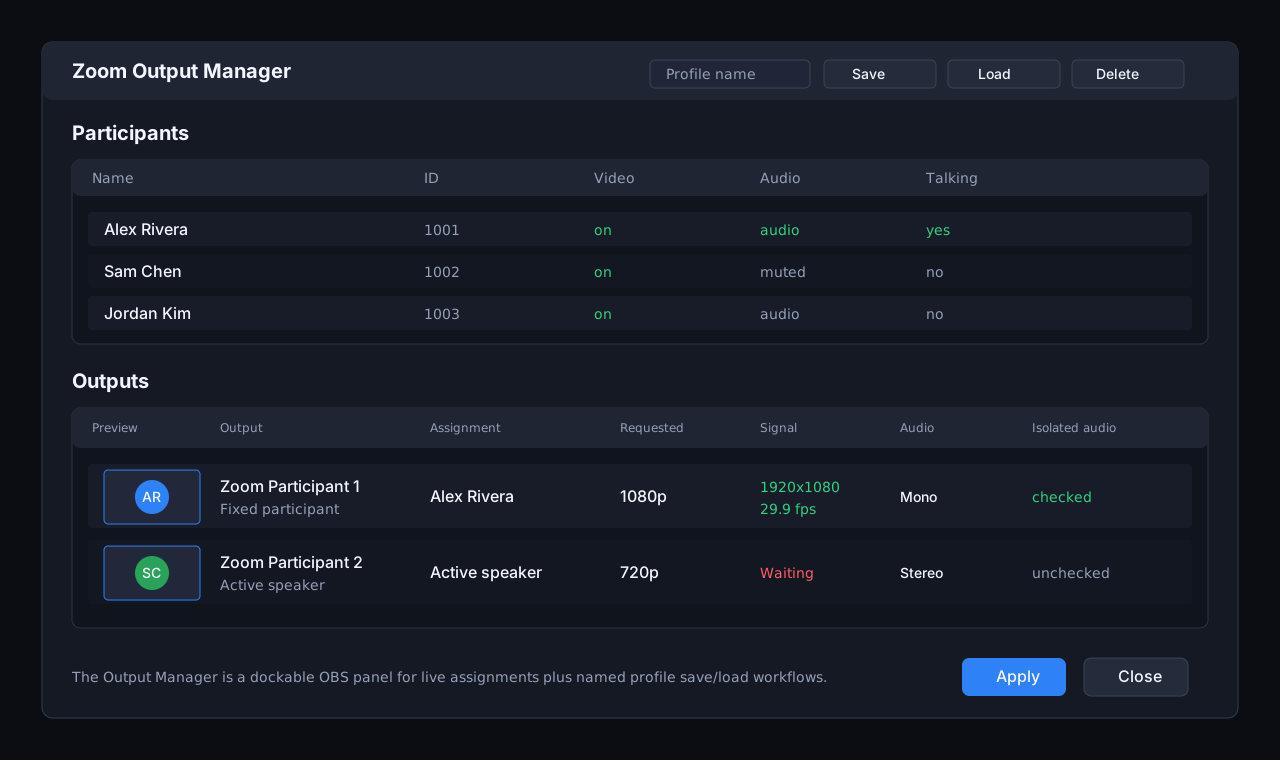
Zoom Output Manager is now a persistent OBS dock for source assignments, live preview thumbnails, feed health, profile save/load, and manual recovery actions.
TCP Control API
JSON server on port 19870 — query, join, leave, assign outputs from scripts or dashboards.
OSC Control API
UDP OSC server on port 19871 for lighting consoles and broadcast hardware.
Output Profiles
Save and load named participant-to-source mappings as JSON files.
OBS Hotkeys
Per-source hotkeys to enable/disable active speaker mode from OBS keyboard shortcuts.
Hardened Security
Constant-time token comparison, validated IPC input, sanitised participant IDs, SIGPIPE handling, DPAPI token storage (Windows).
Zoom OAuth PKCE
Broker-backed OAuth 2.0 with S256 PKCE for attributed joins and Marketplace compliance. Meeting SDK auth uses the embedded Marketplace Public Client ID as publicAppKey. Custom URL scheme with platform callback helpers.
Modern UI
CoreVideo dark stylesheet with animated CvStatusDot, CvBanner first-run notices, and button role variants (primary / danger).
Auto ISO Recording
Record assigned participant video/audio tracks to separate files while optionally recording the main OBS program output.
Multi-Platform
Windows has a release installer; macOS has a signed Apple Silicon beta installer. Linux requires a source build.
Adding the App
CoreVideo is distributed as a fully installable Windows application — there is nothing to compile and no SDK to download. Installation takes a few minutes.
1. Download CoreVideo
Go to corevideo.io/download and get the
latest Windows installer (CoreVideo-Setup.exe). Every release also publishes a
matching .sha256 checksum you can verify.
2. Run the installer
Close OBS Studio if it is open, then double-click CoreVideo-Setup.exe and
follow the prompts. The installer adds the CoreVideo plugin and its bundled Zoom runtime to
your OBS Studio installation.
3. Open OBS Studio
Launch OBS Studio 30 or newer. CoreVideo loads automatically: you'll see the Zoom Control dock and a Tools → Zoom Plugin Settings menu item. If the dock is hidden, enable it from Docks → Zoom Control.
4. Sign in with Zoom
Click Sign in with Zoom and authorize CoreVideo in your browser (details in Sign in with Zoom below). That's it — you're ready to use it.
Adding CoreVideo to your Zoom account
In Zoom's terms, an app is added to your Zoom account the first time you authorize it. There are two equivalent ways to do that:
- From OBS (recommended): click Sign in with Zoom in the Zoom Control dock or Tools → Zoom Plugin Settings. Your browser opens Zoom's authorization page; review the requested permissions and click Allow. CoreVideo is added to your account automatically and the sign-in completes back in OBS.
- From the Zoom App Marketplace: open the Zoom App Marketplace, search for CoreVideo, open the listing, and click Add. After you click Allow on the permissions screen, install the Windows app (steps above) and sign in — the account authorization is already in place.
Either way, CoreVideo then appears under Zoom App Marketplace → Manage → Added Apps, where you can review or remove it at any time.
user:read:user (your profile /
display name) and user:read:token (a short-lived Zoom Access Key used to join
meetings as you). It requests no write access, no recording access, and no access to other
users' data. Tokens are stored encrypted on your machine — see
Sign in with Zoom.
macOS: Apple Silicon beta
CoreVideo v0.1.45-beta.1 is available as a signed and notarized installer. Requires an Apple Silicon Mac (M1 or later). Use OBS Studio 32.2.1 or newer for this beta; the replacement package was built against OBS 32.2.1.
Download the macOS installer and SHA-256 checksum.
- Close OBS and open the downloaded
.pkg. - Install for your user account; no administrator password is needed.
- Reopen OBS, sign in to Zoom, and join a meeting. Allow the requested permissions. The meeting host must grant recording permission before raw video and audio can start.
The original macOS downloads were replaced on September 6, 2026 after signature errors. Download the replacement installer if you previously downloaded this beta. The old ZIP was removed.
ISO recording requires a working FFmpeg executable configured in Zoom ISO Recorder; the macOS installer does not bundle it.
Talkback remains Windows-only. For your own screen, use OBS's native macOS Screen Capture source. Intel Macs are not supported by this package.
Sign in with Zoom
Use case: Authorize CoreVideo to join meetings and receive raw participant media on your behalf. You sign in once; CoreVideo refreshes the session automatically.
Prerequisites: A Zoom account and CoreVideo installed. You do not need a Zoom developer account, an SDK key, or any client secret — published builds use CoreVideo's hosted broker with OAuth 2.0 + PKCE.
1. Click "Sign in with Zoom"
In the Zoom Control dock, or via Tools → Zoom Plugin Settings.
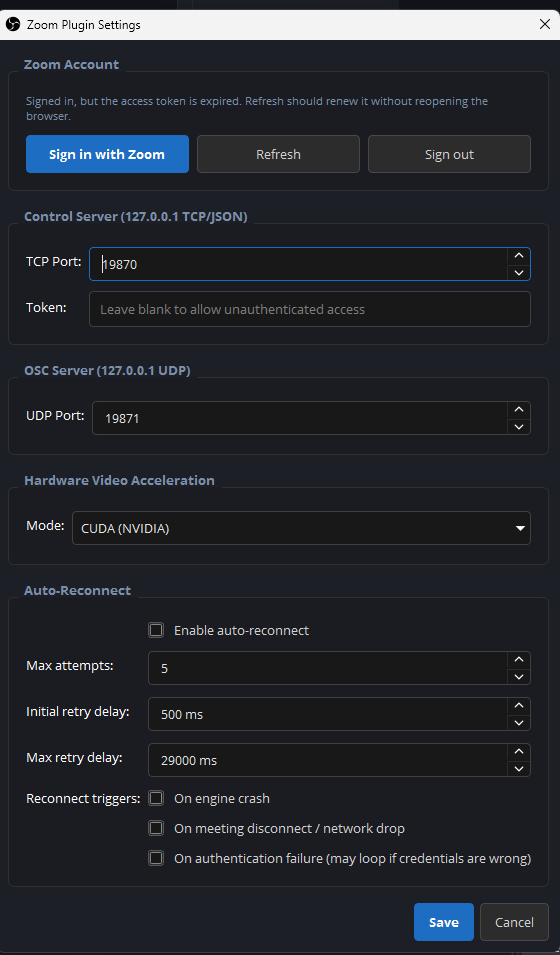
2. Authorize in your browser
Your browser opens Zoom's consent screen. Approve access. CoreVideo registers its
corevideo:// callback handler automatically the first time.
3. Done
The dock shows a connected status and token expiry. Tokens are stored locally on your machine (DPAPI-encrypted on Windows). CoreVideo never sees your Zoom password, and no client secret is stored in the app.
Requirements
| Requirement | Notes |
|---|---|
| Windows 10 / 11 (64-bit) | Windows is the release channel (installer or ZIP). A signed macOS Apple Silicon beta installer is also available. Linux requires a source build. |
| OBS Studio 30+ | Install OBS first; CoreVideo loads as a plugin. |
| A Zoom account | Any account you can sign in with. No developer account, SDK key, or client secret required. |
| Network bandwidth | Plan roughly 4-6 Mbps per 1080p participant feed. Your Zoom account and app entitlements affect maximum quality and stream count (standard accounts are commonly limited to ~30 Mbps incoming video; Enhanced Media / HBM can raise that to ~100 Mbps). |
Using CoreVideo
Each capability below lists what it's for and what you need before using it. For deeper technical detail, see the Architecture and Reference sections further down.
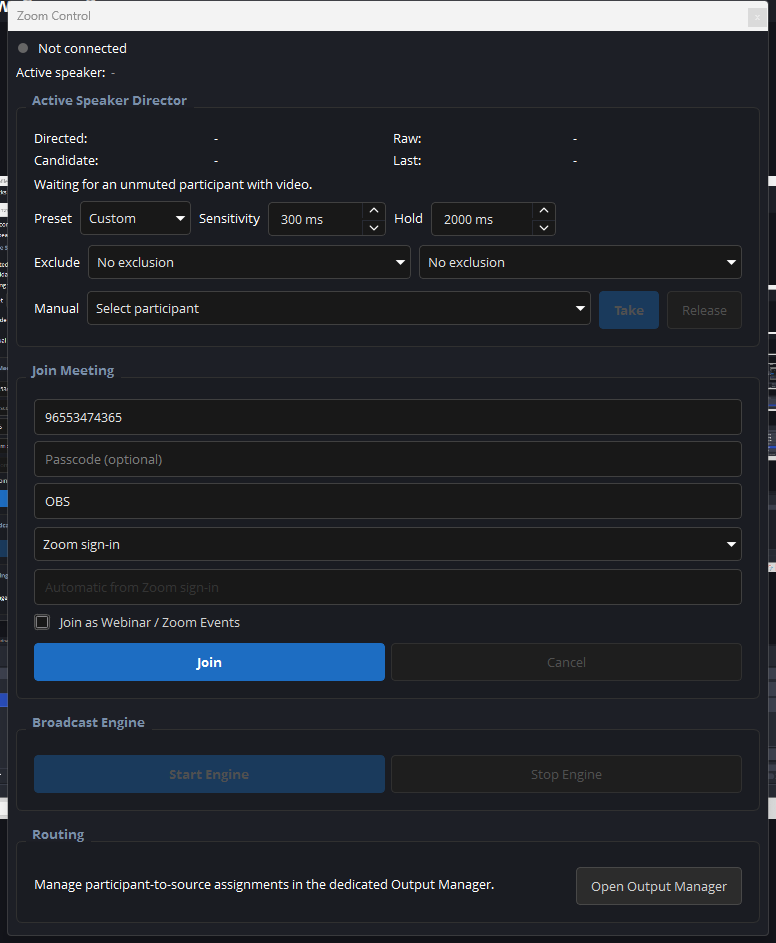
Join a meeting from the Zoom Control dock
Use case: Connect OBS to a live Zoom meeting or webinar.
Prerequisites: Signed in with Zoom. The host should admit "OBS" (the default display name) from the waiting room, or allow guests.
Paste a Meeting ID or Zoom URL, an optional passcode, and a display name, then click Join. Toggle Join as Webinar for webinars. The status dot turns green when connected.
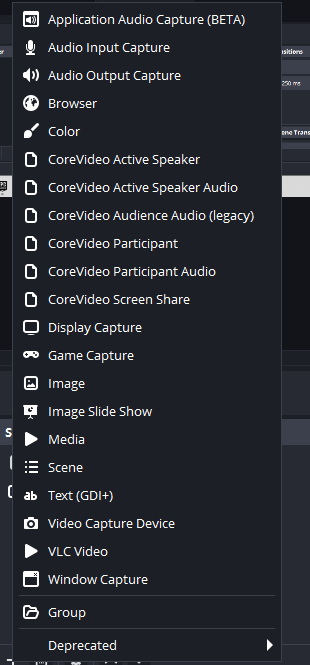
Add Zoom sources to a scene
Use case: Bring individual participants, the active screen share, a spotlight slot, or interpretation audio into OBS as native sources you can position, style, and mix.
Prerequisites: Signed in and joined to a meeting.
In OBS, click + under Sources and choose a CoreVideo source: Zoom Participant (video), Zoom Participant Audio, Zoom Screen Share, Zoom Spotlight, or Zoom Interpretation Audio. Pick a participant or slot in the source properties (see the Configuration Reference).
Active Speaker Director
Use case: Automatically switch a source to whoever is speaking, with broadcast-safe debounce so it doesn't cut on every cough.
Prerequisites: In a meeting with participants on camera.
Enable Follow active speaker on a Zoom Participant source, or use the dock's Director controls, and tune sensitivity and minimum hold time. Full algorithm: Active Speaker Mode.
Output Manager & profiles
Use case: See every source's assignment and feed health at a glance, and save/load named participant-to-source layouts between shows.
Prerequisites: CoreVideo sources added to your scene.
Open the Zoom Output Manager dock to assign participants, watch live thumbnails and health, and save/load profiles. See Output Profiles.
ISO recording
Use case: Record each assigned participant to a separate video/audio file (clean ISOs) for editing, while optionally recording the OBS program.
Prerequisites: In a meeting with assigned sources, and disk space for per-participant files.
Enable ISO recording from the dock. Details: Auto ISO Recording.
Auto-reconnect
Use case: Automatically re-join after a network drop or engine restart so a broadcast recovers on its own.
Prerequisites: None — on by default; a cancel button appears during recovery. See Auto-Reconnect.
External control (TCP / OSC)
Use case: Drive CoreVideo from production tools, scripts, or lighting/broadcast hardware.
Prerequisites: Enable the control server (optionally set a token). See the TCP and OSC reference.
Removing the App
Removing CoreVideo has two parts: de-authorizing it from your Zoom account, and uninstalling the software.
1. De-authorize CoreVideo in Zoom
Sign in to Zoom App Marketplace → Manage → Installed Apps, find CoreVideo, and click Remove. You can also click Disconnect in Tools → Zoom Plugin Settings first to clear the local session.
2. Uninstall the software
Close OBS, then remove CoreVideo from Windows Settings → Apps → Installed apps → CoreVideo → Uninstall (or run the bundled uninstaller). This removes the plugin and its Zoom runtime from OBS.
3. How your data is removed
CoreVideo stores your Zoom OAuth tokens locally on your machine (DPAPI-encrypted on Windows) inside the OBS plugin config directory. It does not upload or store your account data on any server — CoreVideo's hosted broker only performs the OAuth token exchange in transit and retains nothing about you.
- Clicking Disconnect (Tools → Zoom Plugin Settings) deletes the stored access and refresh tokens.
- To remove all local settings, delete the
obs-zoom-pluginfolder under your OBSplugin_configdirectory after uninstalling. - De-authorizing in the Zoom Marketplace (step 1) invalidates the tokens server-side regardless.
See our Privacy Policy for full details on data handling.
Troubleshooting
| Symptom | Fix |
|---|---|
| Zoom Control dock not visible after install | Enable it from OBS Docks → Zoom Control (or Tools → Zoom Control, which creates and shows it even if you've never opened it before). Confirm OBS is version 30+ and was fully closed during install. |
| "Sign in with Zoom" doesn't complete | Finish the browser consent and allow the corevideo:// link to open CoreVideo. Re-run sign-in from Tools → Zoom Plugin Settings. See Sign-in loop below for more. |
| Joined, but no video | Work through the No video frames checklist below. |
| Source shows color bars | The source isn't subscribed yet — assign a participant or slot in the source properties or the Output Manager. |
| Choppy or low-resolution feeds | Reduce the number of concurrent 1080p feeds or the requested resolution, and check available bandwidth (~4-6 Mbps per 1080p feed). |
| Windows warns "Windows protected your PC" during install | Expected for the unsigned beta installer — see SmartScreen below. |
| Windows Firewall prompts for CoreVideo or ZoomObsEngine | Both control ports are loopback-only — see Firewall prompts below. |
Installer blocked by Windows SmartScreen
CoreVideo's beta installer (CoreVideo-Setup.exe) is not yet
code-signed, so Windows SmartScreen will show "Windows protected your
PC" the first time you run it. This is expected during the beta —
it does not mean the download is unsafe, but you should still confirm you got
the file from corevideo.io/download
or the official GitHub Releases page.
1. Click "More info"
On the SmartScreen dialog, click More info, then Run anyway. If you don't see a "More info" link, your organization's policy may be blocking unsigned installers entirely — check with your IT administrator.
2. (Optional but recommended) Verify the checksum
Every release publishes a matching .sha256 file next to the
installer and ZIP. Compare it against a local hash before running the
installer:
certutil -hashfile CoreVideo-Setup.exe SHA256or, in PowerShell:
Get-FileHash .\CoreVideo-Setup.exe -Algorithm SHA256The result should match the contents of the corresponding
.sha256 file from the same release.
"No video frames" checklist
Work through these in order — each one rules out a different stage of the pipeline.
- Assignment mode is set. A newly added Zoom Participant / Spotlight / Screen Share source isn't subscribed to anything until you assign it — in the source properties or the Zoom Output Manager dock. An unassigned source shows the color-bar placeholder, not black.
- The participant actually has their camera on and has been admitted from the waiting room (or the meeting allows guests). CoreVideo can only capture video a participant is sending.
- Check requested vs. observed resolution in the Zoom Diagnostics dock. Open Docks → Zoom Diagnostics (or Tools → Zoom Diagnostics) and look at the Outputs table. If Observed stays blank or 0×0 while Requested shows a resolution, the subscription never came up — re-assign the source or click Refresh. If observed resolution is consistently lower than requested, that's usually a bandwidth or entitlement ceiling, not a bug.
- Confirm the engine is actually running. Every meeting
session launches
zoom-runtime\ZoomObsEngine.exeas a child process of OBS — all Zoom SDK access happens there, not in the plugin DLL. If it isn't running (check Task Manager, or "Engine running" in a support bundle'ssummary.txt), the plugin never receives frames. Antivirus software occasionally quarantines or blocks a freshly-installedZoomObsEngine.exe— check your antivirus's quarantine/history if it's missing. - Bandwidth and entitlements. Your Zoom account and app entitlements bound both quality and stream count: standard accounts are commonly limited to ~30 Mbps incoming video (roughly 4-6 Mbps per 1080p feed), while Enhanced Media / HBM can raise that to ~100 Mbps. If several 1080p feeds are requested at once on a standard account, expect some to negotiate down or fail — see Requirements.
Sign-in loop / browser doesn't return to OBS
"Sign in with Zoom" opens your browser to Zoom's consent screen and expects
the browser to hand control back to CoreVideo afterward through the
corevideo:// URL scheme. A few different things can break that
handoff:
- The
corevideo://handler isn't registered yet. CoreVideo registers it automatically the first time you click Sign in with Zoom. If a browser prompt asks which app should open acorevideo://link, choose CoreVideo (and "always allow" it) — if you dismiss or block that prompt, the callback has nowhere to go and the browser tab just sits there after you approve access in Zoom. - The callback helper didn't launch. The last hop is a
small helper binary,
CoreVideoOAuthCallback.exe, which the OS launches for thecorevideo://oauth/callbackURL and which forwards it to the plugin's local control server as anoauth_callbackcommand. If antivirus software or SmartScreen blocked that helper from running, sign-in will look like it hung after you approved access in the browser. Retry sign-in, and allow the helper if prompted. - Admin-managed Zoom account. If your organization restricts Marketplace apps, the consent screen shows Request pre-approval instead of Allow — sign-in cannot complete until a Zoom admin approves CoreVideo. See Adding CoreVideo to your Zoom account for the pre-approval steps.
- Whatever the cause, re-running sign-in from Tools → Zoom Plugin Settings is safe and starts a fresh authorization attempt.
Firewall prompts for TCP 19870 / UDP 19871
127.0.0.1 only — nothing outside
your machine can reach either port, regardless of how you answer a Windows
Firewall prompt. Windows may still prompt the first time one of these
servers binds, because it can't tell in advance that a listener is
loopback-restricted.
It's safe to Allow access on Private networks if you plan to drive CoreVideo from an external control surface (Companion, a lighting console, a custom script) running on the same machine. If you don't use the TCP/OSC APIs, it's equally safe to Cancel or deny the prompt — Zoom capture, sources, and sign-in do not depend on either server; only external control does.
Zoom Diagnostics / Zoom Output Manager / other docks missing
Every CoreVideo dock — Zoom Control, Zoom Diagnostics, Zoom Output Manager, and Zoom ISO Recorder — can be re-shown from OBS's Docks menu once it has appeared at least once. The first time, or if you closed it permanently, use the matching item under the Tools menu instead (e.g. Tools → Zoom Diagnostics) — the Tools menu items create and show the dock even if OBS has never registered it in the Docks list before.
Plugin not loading
If OBS starts normally but none of the Zoom Control / Diagnostics / Output Manager / ISO Recorder menu items or docks appear at all, the plugin itself likely failed to load:
- Confirm OBS Studio is 30 or newer (Help → About). CoreVideo links against OBS 30's plugin API; older OBS builds cannot load it.
- Check the OBS log (Help → Log Files → View
Current Log) for a module-load failure mentioning
obs-zoom-plugin.dll. A missing-DLL style error there most often means a required file didn't get installed alongside OBS — reinstall with OBS fully closed (the installer refuses to proceed ifobs64.exeis still running, but a stuck background process can slip past that check). - Missing Visual C++ runtime, in rare cases. CoreVideo's Qt6 and plugin DLLs are built with the same MSVC toolchain as OBS Studio itself, so if OBS runs at all the runtime is normally already present. On an unusually minimal Windows install, installing the latest Microsoft Visual C++ x64 Redistributable is a reasonable thing to try if the log shows a generic DLL load failure.
Filing a bug
Still stuck? Open the Zoom Diagnostics dock
(Docks → Zoom Diagnostics, or
Tools → Zoom Diagnostics) and click Create
Support Bundle. It writes a redacted bundle — SDK keys, secrets,
OAuth tokens, and similar credentials are stripped before anything is written
to disk — plus a matching .zip under
%AppData%\obs-studio\plugin_config\obs-zoom-plugin\support-bundles\.
Attach that .zip when you
file a bug report,
or contact CoreVideo Support for anything that isn't
a clear bug.
Architecture: System Overview
All Zoom SDK access lives exclusively in ZoomObsEngine.
The plugin communicates with it through ZoomEngineClient — a
singleton that launches the engine process, owns the IPC channels, and
distributes roster events and frame notifications to registered sources.
The plugin contains no Zoom SDK headers or linkage.
Meeting joining is handled by the Zoom Control dock
(ZoomDock) or the TCP/OSC APIs. On unexpected disconnects the
ZoomReconnectManager automatically re-joins with exponential
back-off. Sources each hold an AssignmentMode that controls
which feed they subscribe to: a fixed participant, the active speaker, a
spotlight slot, or the active screen share.
Architecture: Plugin Components
All Zoom SDK access lives in ZoomObsEngine. The plugin-side
hierarchy centers on ZoomEngineClient (IPC singleton) and
ZoomSource (reads frames from ShmRegion).
New additions: ZoomDock (join UI), ZoomReconnectManager
(auto-reconnect), and HwVideoPipeline (hardware I420→NV12).
Architecture: ZoomEngineClient
ZoomEngineClient is the plugin-side singleton that manages the
entire engine process lifecycle. It launches ZoomObsEngine as a
child process, connects the two IPC channels, runs a dedicated reader thread
for incoming events, and dispatches per-source frame/audio callbacks.
All Zoom SDK state (auth, meeting, roster, active speaker) is owned by the
engine; the client tracks it locally by processing the event stream.
Lifecycle
| Call | Effect |
|---|---|
ZoomEngineClient::instance().start(auth_token, public_app_key) | Launches engine process, connects pipes/sockets (up to 300 retries × 100 ms), and sends init with publicAppKey for published builds |
join(meeting_id, passcode, name) | Sends join command; blocks until joined event or failure |
subscribe(uuid, pid) | Sends subscribe; engine begins writing frames to ZoomObsPlugin_<uuid> shared memory |
unsubscribe(uuid) | Stops frame delivery; ZoomSource releases its ShmRegion |
leave() / stop() | Sends leave / quit; reader thread joins |
Roster, Active Speaker, and Spotlight
The engine sends a participants event whenever the roster changes
and an active_speaker event when the speaking participant changes.
ZoomEngineClient updates its internal roster and active-speaker ID
from these events, then fires all registered RosterCallback
functions. ZoomSource instances react based on their
AssignmentMode: active-speaker sources run the debounce algorithm;
spotlight sources send a subscribe_spotlight command when spotlight
slots change.
Deferred Join (Pending Until Authenticated)
Calls to join() before the engine has authenticated store the
meeting credentials in m_join_pending / m_pending_* fields.
When the auth_ok event arrives, send_join_locked()
is called automatically so operators can trigger join at any time.
Monitor Thread
A dedicated monitor_loop() thread watches for engine health
issues (stalled reader, unexpected process exit) and sets the state to
Failed, which triggers ZoomReconnectManager
if recovery is configured.
Architecture: IPC Engine
ZoomObsEngine runs as a separate process on all platforms.
Control messages use newline-delimited JSON over platform IPC channels.
Frame data flows through named shared memory to avoid copying large buffers.
ZoomEngineClient in the plugin abstracts all IPC details.
| Platform | Plugin → Engine | Engine → Plugin |
|---|---|---|
| Windows | \\.\pipe\ZoomObsPlugin_P2E | \\.\pipe\ZoomObsPlugin_E2P |
| macOS / Linux | /tmp/ZoomObsPlugin_P2E.sock | /tmp/ZoomObsPlugin_E2P.sock |
Architecture: Video Pipeline
| Property | Options | Notes |
|---|---|---|
| Resolution | P360 / P720 / P1080 | Sent to engine in subscribe command; passed to SDK renderer |
| Frame format in SHM | I420 YUV planar | Written by engine directly; ZoomSource reads planes from ShmRegion |
| Output to OBS | I420 planar | VIDEO_FORMAT_I420 via obs_source_output_video() |
| Video loss — LastFrame | Hold last decoded frame | Default OBS behaviour |
| Video loss — Black | Push black I420 immediately | Useful for clean cuts |
| Preview callback | ≤ 5 fps raw I420 | Used by OBS UI thumbnail / output dialog |
Architecture: Audio Pipeline
Audio processing now lives entirely in the engine process. The engine writes
PCM chunks to a per-source shared memory region and sends an audio
event. ZoomSource reads the chunk from m_audio_shm and
pushes it to OBS. Stereo sources use an internal m_stereo_buf to
interleave channels before output.
| Property | Value |
|---|---|
| Sample rate | 48 000 Hz |
| Format | S16LE |
| Mono | Mixed feed downmixed to one channel |
| Stereo | Left/right separation via m_stereo_buf interleave in ZoomSource |
| Isolated audio | Configured per-source via isolate_audio flag in subscribe command |
Flow: Authentication
Published CoreVideo builds do not ship Meeting SDK secrets in the OBS
plugin. After Zoom sign-in, the plugin refreshes OAuth tokens through the
CoreVideo broker when needed, fetches the signed-in user's ZAK, and starts
the helper with AuthContext.publicAppKey. The engine is not
started on module load; it is launched the first time a join is requested.
Flow: Zoom OAuth PKCE
ZoomOAuthManager implements broker-backed OAuth 2.0 with PKCE
(Proof Key for Code Exchange, S256) for user-level attributed meeting joins
and Zoom App Marketplace compliance. The desktop plugin opens the broker
start URL, receives a short-lived broker token through
corevideo://oauth/callback, and never stores a Zoom app secret.
Setup (one-time per machine)
Use the embedded broker
Published builds already contain the CoreVideo broker URL. Open Tools → Zoom Plugin Settings; there are no Client ID, Client Secret, or Authorization URL fields for end users to configure.
Register the URL scheme
Click Sign in with Zoom. CoreVideo registers the
corevideo:// callback helper automatically on first use.
Authorize
CoreVideo opens the browser at
https://corevideo.iamfatness.us/oauth/start. Approve the app
in Zoom.
Callback forwarding
Zoom redirects to the broker callback, then the broker returns an
encrypted broker token to corevideo://oauth/callback. The
helper forwards that URL to the plugin via the TCP control server
(oauth_callback command). Tokens are stored; on Windows they
are DPAPI-protected before writing to OBS config.
Authorization Flow
ZAK Fetch and publicAppKey SDK Auth (before each join)
Security Notes
| Property | Implementation |
|---|---|
| PKCE method | S256 - SHA-256 of a 32-byte random verifier, base64url-encoded by the broker |
| State parameter | 16-byte random base64url value; verified on callback to prevent CSRF |
| Client secret | No OAuth or Meeting SDK client secret is shipped in the OBS plugin. Public Client OAuth and Meeting SDK publicAppKey are used for published builds. |
| Token storage (Windows) | Access and refresh tokens encrypted with DPAPI before writing to OBS global config |
| No secret logging | Access tokens, refresh tokens, ZAKs, codes, broker tokens, and verifiers are never written to logs or IPC messages |
| Refresh rotation | Always persist the latest refresh token Zoom returns; stale tokens are discarded |
| Callback token bypass | The oauth_callback TCP command bypasses the control server token; the OAuth state and one-time verifier still guard against replay |
docs/ZOOM_MARKETPLACE_OAUTH.md for the
complete Zoom Marketplace app configuration, local setup walkthrough, and Marketplace review checklist.
Flow: Meeting Join & Capture
Joining is centralized in ZoomDock (or the TCP/OSC control APIs) —
not in individual sources. Sources subscribe to the already-joined meeting.
Assignment Modes
Each ZoomSource has an AssignmentMode property
that controls which feed it subscribes to. This is the ZoomISO 3.0 model:
sources are reusable roles rather than fixed participant bindings.
| Mode | Enum value | Behaviour |
|---|---|---|
| Participant | AssignmentMode::Participant | Subscribe to a fixed participant_id. If a failover_participant_id is set and the primary participant leaves, the source automatically re-subscribes to the failover. |
| Active Speaker | AssignmentMode::ActiveSpeaker | Follow whoever is currently speaking. Uses the two-timer debounce (sensitivity + hold). See Active Speaker Mode section for details. |
| Spotlight Slot | AssignmentMode::SpotlightIndex | Subscribe to Spotlight 1-8. The engine tracks which participant is in each spotlight position and sends subscribe_spotlight subscriptions automatically when the slot changes. |
| Screen Share | AssignmentMode::ScreenShare | Subscribe to the active screen-share feed. Uses subscribe_screenshare(uuid) on the engine. The source shows a placeholder when no share is active. |
Screen Share Workflow
To capture slides, demos, or a shared desktop, add a CoreVideo Screen Share source or set any CoreVideo Participant source to Assignment > Active screen share. The source follows Zoom's active share feed and shows a placeholder when no participant is sharing.
The Zoom Output Manager assignment menu also includes
Screen share. When a share is active, the menu label
includes the sharing participant name. The TCP
list_outputs response for screen-share outputs includes the
current sharing participant ID and display name.
{
  "assignment_mode": "screen_share",
  "screen_share_available": true,
  "screen_share_participant_id": 123456,
  "screen_share_participant_name": "Alex Rivera",
  "observed_width": 1920,
  "observed_height": 1080,
  "observed_fps": 30.0
}
Failover Participant
In Participant mode, a failover_participant_id
(0 = disabled) can be configured alongside the primary participant. When the
engine sends a participants event showing the primary ID has left,
ZoomSource automatically re-subscribes to the failover ID. When
the primary rejoins, it switches back.
Spotlight Tracking
In Spotlight Slot mode, the roster callback checks
ParticipantInfo::spotlight_index on every roster update.
The source sends a subscribe_spotlight(uuid, slot) to the engine,
which resolves the participant in that slot and sets up the SDK renderer.
This mirrors the ZoomISO "Spotlight 1/2/3" output model.
Active Speaker Mode
When Follow active speaker is enabled on a Zoom Participant source, the plugin continuously monitors who is speaking and switches the video subscription (and optionally the isolated audio feed) to the new speaker. A two-timer debounce prevents rapid camera cuts caused by brief interruptions.
The current build also includes a central Active Speaker Director in the Zoom Control dock and a dedicated CoreVideo Active Speaker OBS source. The director tracks the raw Zoom speaker, candidate speaker, directed speaker, last directed speaker, and manual take/release state. The dock also shows a plain-language status line for waiting, holding, candidate evaluation, and manual supersede states. The dedicated source follows the directed speaker and uses a two-slot handoff: the current participant stays visible while the next participant warms on a hidden slot, then the source cuts only after a valid frame is available.
Debounce Algorithm
Every time ZoomEngineClient dispatches a roster callback (triggered
by an active_speaker or participants IPC event), the source
runs on_active_speaker_changed(). Two independent timers must
both be satisfied before a switch is committed:
- Sensitivity guard — the candidate speaker must hold the
floor continuously for at least
speaker_sensitivity_ms(default 500 ms). A new candidate resets this clock. - Hold guard — after any switch, no further switch may
occur for at least
speaker_hold_ms(default 2 000 ms), regardless of who speaks.
The actual delay is max(hold_remain, sense_remain). If the delay
is zero the switch fires immediately on the calling thread; otherwise a
detached background thread sleeps for the delay and then posts a UI task via
obs_queue_task(OBS_TASK_UI, …) to re-evaluate on the OBS UI thread.
Switch Sequence
Timing Parameters
| Parameter | Default | Range | Description |
|---|---|---|---|
speaker_sensitivity_ms | 500 ms | 0 – 3 000 ms (step 50) | New speaker must hold the floor this long before the switch fires |
speaker_hold_ms | 2 000 ms | 0 – 10 000 ms (step 100) | Minimum time to stay on current speaker after any switch |
The Zoom Control dock exposes these values through the Active Speaker Director controls. Operators can also manually take a participant to air and release that supersede when automatic direction should resume.
Safety Mechanisms
- Liveness flag —
speaker_aliveis ashared_ptr<atomic<bool>>captured by value in every in-flight lambda. When the source is destroyed,speaker_alive → falseis stored before deletion. The deferred UI task checks the flag before touchingZoomSource, preventing use-after-free. - Supersede logic — if a new candidate arrives while one
is already pending,
pending_speaker_idandcandidate_sinceare updated to the newer speaker, restarting the sensitivity clock. Stale callbacks from the previous candidate seespk != pending_speaker_idand bail out silently. - Final verification — immediately before calling
do_speaker_switch(), the code re-checksZoomParticipants::active_speaker_id() == spkso a switch never fires for a speaker who stopped talking during the hold period. - UI-thread commitment — all state mutations (participant_id,
last_switch_time, video subscription) happen on the OBS UI thread via
obs_queue_task, avoiding data races with the properties panel.
Audio Isolation Interaction
When Isolate Audio is also enabled, every speaker switch
triggers a new subscribe command to the engine with the updated
participant ID and the isolate_audio flag, so the engine adjusts
the audio feed to follow the same participant as the video.
UI Behaviour
Enabling active speaker mode in the Properties panel automatically
disables the Participant dropdown (not relevant while
following the speaker) and enables the Sensitivity and
Hold sliders. The participant list still shows live roster entries with
talking (●) and video ([video]) indicators,
and updates when the Refresh button is pressed.
Director TCP Controls
| Command | Request | Use |
|---|---|---|
speaker_director_status | {"cmd":"speaker_director_status"} | Returns directed, raw, candidate, last, manual, sensitivity, and hold state |
speaker_director_configure | {"cmd":"speaker_director_configure","sensitivity_ms":650,"hold_ms":2500} | Updates director timing |
speaker_director_take | {"cmd":"speaker_director_take","participant_id":123} | Manually holds a participant as the directed speaker |
speaker_director_release | {"cmd":"speaker_director_release"} | Returns to automatic speaker direction |
The status payload includes numeric IDs and resolved participant objects
for directed_speaker, raw_speaker,
candidate_speaker, last_speaker,
manual_speaker, and excluded_participants, plus a
status value such as holding,
candidate_pending, manual_supersede, or
waiting_for_speaker. TCP subscribers receive
speaker_director_changed when the directed, candidate, or
manual speaker changes.
Auto-Reconnect
ZoomReconnectManager automatically re-joins the meeting after
engine crashes, network drops, SDK errors, or host-ended meetings.
It is configurable per-session and shows a live countdown in the Zoom Control dock.
Reconnect Policy
| Field | Default | Description |
|---|---|---|
enabled | true | Master switch for auto-reconnect |
max_attempts | 5 | Maximum retry attempts before giving up |
base_delay_ms | 2 000 ms | Initial delay before first retry |
max_delay_ms | 30 000 ms | Maximum delay between retries (caps the back-off) |
backoff_multiplier | 2.0 | Exponential multiplier: delay × 2^attempt |
on_engine_crash | true | Trigger recovery on engine process exit |
on_disconnect | true | Trigger recovery on unexpected meeting disconnect |
on_auth_fail | false | Trigger recovery on auth failure (disabled by default) |
Recovery Triggers
| RecoveryReason | Cause |
|---|---|
EngineCrash | Engine process exited unexpectedly |
MeetingDisconnect | SDK reported unexpected meeting end |
NetworkDrop | Network connectivity lost mid-meeting |
AuthFailure | SDK authentication failed or expired without self-healing |
SdkError | Fatal SDK error returned to engine |
HostEndedMeeting | Host ended the meeting (re-join if meeting resumes) |
LicenseError | Raw-data permission, app approval, or developer entitlement issue |
Cancellation Safety
A monotonically increasing generation counter ensures stale timer wakeups
never fire a retry that was already cancelled or superseded. Calling
cancel() bumps the generation; the timer thread sees the
mismatch and discards the pending retry. The dock, TCP
recovery_cancel, and OSC /zoom/recovery/cancel
entry points also stop the engine and clear the stored join session so a
canceled retry loop cannot resurrect itself.
Explicit leave() calls set the m_user_leaving flag
and call clear_session(), preventing any recovery attempt after
a deliberate disconnect.
Zoom Control Dock
ZoomDock is a dockable Qt widget added to OBS on plugin load.
Access it via Tools → Zoom Control or drag it to any dock
position in OBS. It is the primary UI for meeting management.
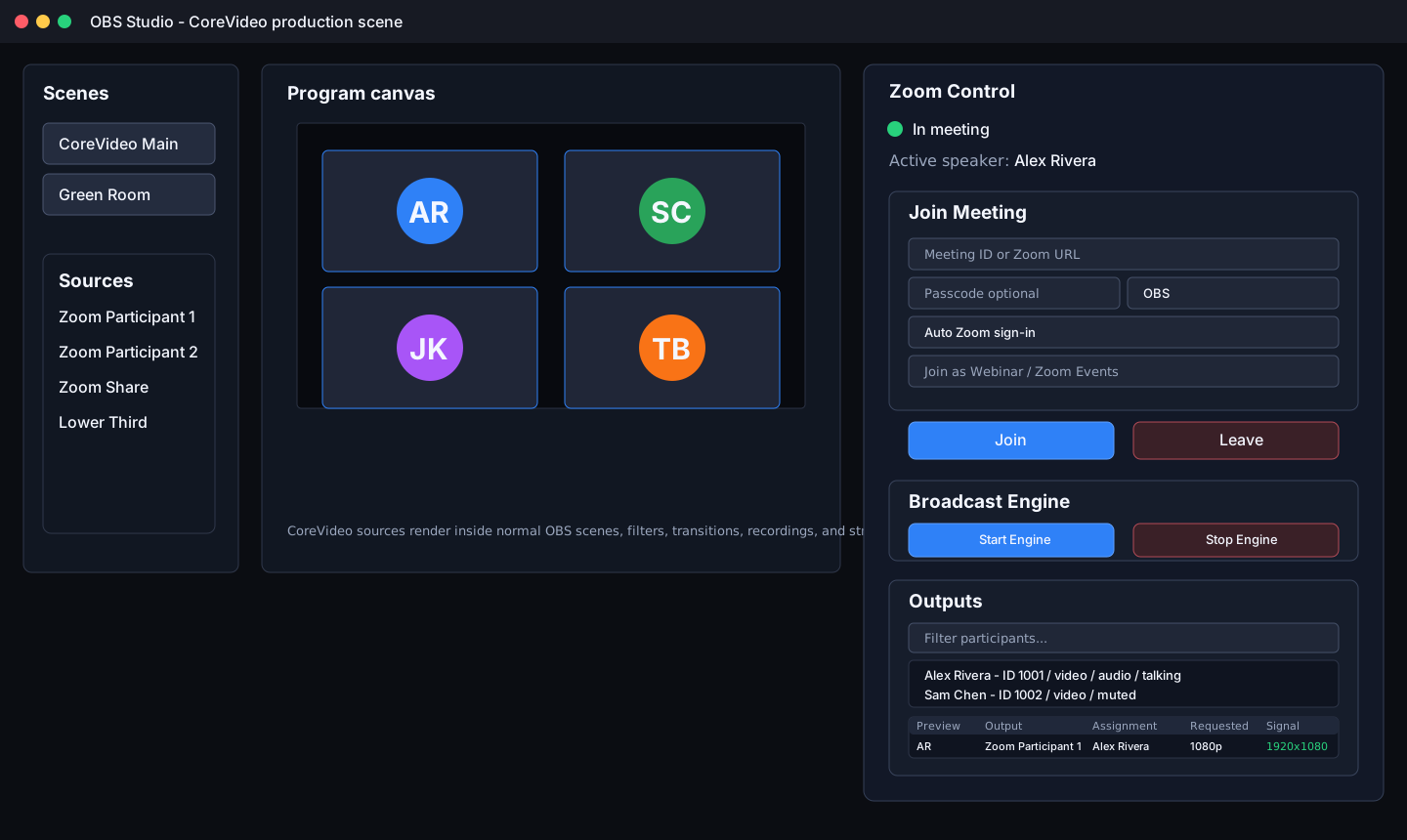
Meeting Control Bar
| Control | Description |
|---|---|
CvStatusDot + label | Animated QPainter status indicator — pulses during transitional states (Joining / Leaving / Recovering); static dot for Idle / InMeeting / Failed |
CvBanner (first-run) | Dismissable notice strip shown until SDK credentials are configured |
| Meeting ID field | Zoom meeting number; persisted from last session |
| Passcode field | Optional meeting passcode |
| Display Name field | Name shown inside the Zoom meeting; persisted from last session |
| Token type selector | Combo box to choose join auth method. Published builds use Auto Zoom sign-in, which fetches a user ZAK and authenticates the SDK with publicAppKey before joining. |
| Webinar checkbox | Use Zoom Webinar SDK join API instead of regular meeting API; persisted |
| Join button | Fetches a user ZAK when needed, starts ZoomObsEngine with publicAppKey auth, then calls ZoomEngineClient::join() |
| Leave button | Calls ZoomEngineClient::leave() and clears reconnect session |
| Start Engine button | Starts raw media capture after the meeting is joined and sends Zoom video/audio to OBS outputs |
| Stop Engine button | Stops raw media capture while staying joined to the meeting |
| Participant filter | Filter participant list by display name |
| Participant list | Shows Zoom display name, user ID, video/audio state, talking state, spotlight, and screen-share tags; participants can be dragged onto output rows |
| Active speaker label | Shows current active speaker's display name |
Session Persistence
The dock saves last_meeting_id, last_display_name, and
last_was_webinar to the plugin settings file on each successful join.
These values are restored and pre-filled in the dock on next OBS launch.
Recovery Panel
Shown automatically when MeetingState::Recovering. Displays:
- Recovery status message with attempt count
- Live countdown timer to next retry (refreshes every second)
- Cancel Recovery button — stops the engine, clears the stored join session, and cancels pending reconnect timers
Routing Section
The dock no longer embeds the full output table. Its routing section opens the dedicated Zoom Output Manager dock, which is the primary assignment surface for saving, loading, deleting profiles, and reviewing requested resolution, observed signal, frame rate, audio mode, audio role, screen-share state, and spotlight state.
Hardware Video Acceleration
When built with -DCOREVIDEO_HW_ACCEL=ON, each ZoomSource
owns a HwVideoPipeline that converts incoming I420 frames to NV12
using FFmpeg hardware acceleration. This offloads color-space conversion from
the CPU to the GPU/media engine.
| HwAccelMode | Backend | Platform |
|---|---|---|
None | CPU path (default) | All |
Auto | First available hardware backend | All |
Cuda | NVIDIA CUDA | Windows / Linux |
Vaapi | VAAPI (Intel / AMD) | Linux |
VideoToolbox | Apple VideoToolbox | macOS |
Qsv | Intel Quick Sync | Windows / Linux |
A per-source hw_accel_override property (−1 = use global setting)
allows different acceleration modes per source. HwVideoPipeline
builds a dynamic FFmpeg filter graph on the first frame and rebuilds it
automatically on resolution change. On any error it falls back to the CPU path
and sets a m_broken flag to avoid repeated failures.
-DCOREVIDEO_HW_ACCEL=ON, HwVideoPipeline
is compiled to an empty stub and init() always returns false.
TCP Control API
Listens on 127.0.0.1:19870 (configurable). Each request and
response is a single-line compact JSON terminated by \n.
If a token is configured, every request must include
"token":"<value>". Token comparison uses constant-time
equality to prevent timing attacks.
echo '{"cmd":"status"}' | nc 127.0.0.1 19870
| Command | Request | Response fields |
|---|---|---|
help | {"cmd":"help"} | commands — array of names |
status | {"cmd":"status"} | meeting_state, active_speaker_id |
list_participants | {"cmd":"list_participants"} | participants array |
list_outputs | {"cmd":"list_outputs"} | outputs array with requested signal, observed signal, subscribed age, stale state, recovery attempts, quality-upgrade attempts, and retry cooldowns |
recover_stale_outputs | {"cmd":"recover_stale_outputs","force":true} | recovered count after retrying stale feeds |
upgrade_low_quality_outputs | {"cmd":"upgrade_low_quality_outputs","force":true} | upgraded count after retrying live feeds below requested resolution; skips feeds already at 1080p |
assign_output | {"cmd":"assign_output","source":"…","participant_id":N,"active_speaker":false,"isolate_audio":true,"audio_channels":"stereo"} | ok, error |
speaker_director_status | {"cmd":"speaker_director_status"} | speaker_director object with directed/raw/candidate/manual/timing state |
speaker_director_configure | {"cmd":"speaker_director_configure","sensitivity_ms":650,"hold_ms":2500} | speaker_director object after applying timing changes |
speaker_director_take | {"cmd":"speaker_director_take","participant_id":N} | speaker_director object with manual supersede enabled |
speaker_director_release | {"cmd":"speaker_director_release"} | speaker_director object with automatic direction restored |
join | {"cmd":"join","meeting_id":"…","passcode":"…","display_name":"OBS"} | ok |
leave | {"cmd":"leave"} | ok |
oauth_callback | {"cmd":"oauth_callback","url":"corevideo://oauth/callback?broker_token=…&state=…"} | ok or error - forwards the OS URL-scheme callback to ZoomOAuthManager::handle_redirect_url(). Token check is bypassed for this command; OAuth state and broker token validation still guard against replay. |
Participant object
{ "id": 123, "name": "Alice", "has_video": true, "is_talking": false, "is_muted": false }Output object
{ "source": "Zoom Participant 1", "participant_id": 123, "active_speaker": false,
  "assignment_mode": "participant", "video_resolution": "1080p",
  "observed_width": 1920, "observed_height": 1080, "observed_fps": 29.97,
  "isolate_audio": true, "audio_channels": "stereo" }
Meeting states
| State | Meaning |
|---|---|
idle | Not in a meeting |
joining | Join in progress |
in_meeting | Active meeting |
leaving | Leave in progress |
failed | Meeting connection failed |
OSC Control API
Listens on 127.0.0.1:19871 UDP (configurable). Accepts standard
OSC 1.0 datagrams. Replies are sent back to the originating host/port.
Supported argument types: i (int32), f (float32),
s (string), T / F (true/false booleans).
Incoming Addresses
| Address | Type tags | Arguments | Action |
|---|---|---|---|
/zoom/status | — | — | Reply with meeting state + active speaker |
/zoom/list_outputs | — | — | Reply one /zoom/output packet per output |
/zoom/recover_stale_outputs | [,i] | optional force flag | Retry stale video outputs and reply with recovered count |
/zoom/upgrade_low_quality_outputs | [,i] | optional force flag | Retry live video outputs below requested resolution and reply with upgraded count |
/zoom/list_participants | — | — | Reply one /zoom/participant packet per participant |
/zoom/join | ,sss | meeting_id, passcode, display_name | Join meeting |
/zoom/leave | — | — | Leave meeting |
/zoom/assign_output | ,si[i] | source, participant_id, [active_speaker 0/1] | Assign source to participant |
/zoom/assign_output/active_speaker | ,s | source | Switch source to active-speaker mode |
/zoom/speaker_director/status | - | - | Reply with directed/raw/candidate/manual speaker and timing state |
/zoom/speaker_director/configure | [,iiiii] | sensitivity_ms, hold_ms, [require_video], [exclude1], [exclude2] | Configure Active Speaker Director timing and exclusions |
/zoom/speaker_director/take | ,i | participant_id | Manually hold a participant as the directed speaker |
/zoom/speaker_director/release | - | - | Return to automatic speaker switching |
/zoom/isolate_audio | ,si | source, 0|1 | Toggle audio isolation for a source |
Reply Addresses (sent by plugin)
| Address | Type tags | Fields |
|---|---|---|
/zoom/status/meeting_state | ,s | state string |
/zoom/status/active_speaker | ,i | user_id |
/zoom/output | ,sisii | source_name, participant_id, display_name, active_speaker, isolate_audio |
/zoom/speaker_director/status | ,iiiiiiii | directed, raw, candidate, last, manual, sensitivity_ms, hold_ms, require_video |
/zoom/speaker_director/configured | ,iii | sensitivity_ms, hold_ms, require_video |
/zoom/speaker_director/take/result | ,i | 1 if manual take succeeded, otherwise 0 |
/zoom/speaker_director/release/result | ,i | 1 if manual mode changed, otherwise 0 |
/zoom/participant | ,isiii | user_id, display_name, has_video, is_talking, is_muted |
Output Profiles
The ZoomOutputProfile namespace persists named output configurations
as JSON files under the OBS plugin config directory:
obs-studio/plugin_config/obs-zoom-plugin/profiles/<name>.json
Each profile stores all current output assignments (source name, participant ID,
active speaker flag, audio isolation, audio mode). Use the
Zoom Output Manager dock (or OBS → Tools to focus it) to save, load, and
delete profiles interactively, or call the ZoomOutputProfile API
directly from code.
| Function | Description |
|---|---|
ZoomOutputProfile::list() | Returns names of all saved profiles |
ZoomOutputProfile::save(name, outputs) | Writes profile JSON file |
ZoomOutputProfile::load(name) | Reads profile and returns output configs |
ZoomOutputProfile::remove(name) | Deletes profile JSON file |
Profile JSON format
[
  {
    "source": "Zoom Participant 1",
    "display_name": "Camera A",
    "participant_id": 123,
    "active_speaker": false,
    "isolate_audio": true,
    "audio_channels": "stereo"
  }
]
IPC Protocol Reference
All messages are UTF-8 JSON terminated by \n. Frame data is
transferred through named shared memory (prefix ZoomObsPlugin_).
Plugin → Engine
| Command | Payload | Description |
|---|---|---|
init | {"cmd":"init","public_app_key":"…"} | Initialize SDK and authenticate with the embedded Marketplace Public Client ID |
join | {"cmd":"join","meeting_id":"…","passcode":"…","display_name":"OBS","kind":"meeting|webinar","user_zak":"…","on_behalf_token":"…"} | Join meeting or webinar. Published broker-backed joins authenticate the SDK during init; user_zak and on_behalf_token remain developer/manual fallback fields. |
leave | {"cmd":"leave"} | Leave meeting |
subscribe | {"cmd":"subscribe","source_uuid":"…","participant_id":N,"isolate_audio":bool} | Subscribe to fixed participant frames |
subscribe_spotlight | {"cmd":"subscribe_spotlight","source_uuid":"…","slot":N} | Subscribe to Spotlight 1-8 |
subscribe_screenshare | {"cmd":"subscribe_screenshare","source_uuid":"…"} | Subscribe to active screen-share feed |
unsubscribe | {"cmd":"unsubscribe","source_uuid":"…"} | Stop frame delivery for this source |
quit | {"cmd":"quit"} | Shut down engine process |
Engine → Plugin
| Event | Payload | Description |
|---|---|---|
ready | {"cmd":"ready"} | Engine started and IPC connected |
auth_ok | {"cmd":"auth_ok"} | SDK authenticated; pending join fires now |
auth_fail | {"cmd":"auth_fail","code":N} | Authentication failed |
joined | {"cmd":"joined"} | Now in meeting |
left | {"cmd":"left"} | Left meeting (normal or host-ended) |
frame | {"cmd":"frame","uuid":"…","shm":"…","w":W,"h":H} | Video frame written to named shared memory |
audio | {"cmd":"audio","uuid":"…","shm":"…","byte_len":B} | PCM audio chunk written to named shared memory |
participants | {"cmd":"participants","active_speaker_id":N,"participants":[{"user_id":N,"display_name":"…","has_video":bool,"is_talking":bool,"is_muted":bool,"is_host":bool,"is_co_host":bool,"raised_hand":bool,"spotlight_index":N,"is_sharing_screen":bool},…]} | Full roster snapshot on any roster change |
active_speaker | {"cmd":"active_speaker","participant_id":N} | Active speaking participant changed |
error | {"cmd":"error","msg":"…","code":N} | SDK or meeting error |
Configuration
Settings Dialog (Tools → Zoom Plugin Settings)
Published builds use the embedded CoreVideo broker — end users do not enter SDK keys, secrets, or JWT tokens.
OAuth Settings
| Field | Default | Description |
|---|---|---|
| OAuth Client ID | Embedded/brokered | Developer-only field when the build has no embedded broker URL. Published builds use the broker public client configuration. |
| OAuth Client Secret | — | Not used in published builds. Public Client OAuth uses PKCE and no desktop secret. |
| Authorization URL | Embedded | Published builds use https://corevideo.iamfatness.us/oauth/start. |
| Redirect URI | corevideo://oauth/callback | Local return URI used by the callback helper after broker authorization. |
| Scopes | user:read:token user:read:user | OAuth scopes requested during authorization. |
| OAuth Status label | — | Shows connected/disconnected status and token expiry |
| Register corevideo:// URL Scheme | — | Registers the OS URL scheme handler for the callback helper; published builds do this automatically on sign-in. |
| Sign in with Zoom | — | Opens browser to begin the broker-backed PKCE authorization flow. |
| Refresh Token | — | Manually trigger token refresh |
| Disconnect | — | Clears stored access and refresh tokens |
Control & Network
| Field | Default | Description |
|---|---|---|
| Control Server Port | 19870 | TCP JSON API port |
| Control Server Token | (empty) | Optional auth token; constant-time comparison |
| OSC Server Port | 19871 | UDP OSC API port |
Meeting Control Dock
| Field | Default | Description |
|---|---|---|
| Meeting ID or Zoom URL | last used | Numeric meeting ID or full Zoom join URL |
| Passcode | — | Optional meeting password; auto-filled from join URLs when present |
| Display Name | OBS | Name shown inside the Zoom meeting |
| Join as Webinar / Zoom Events | off | Uses the webinar join path when selected |
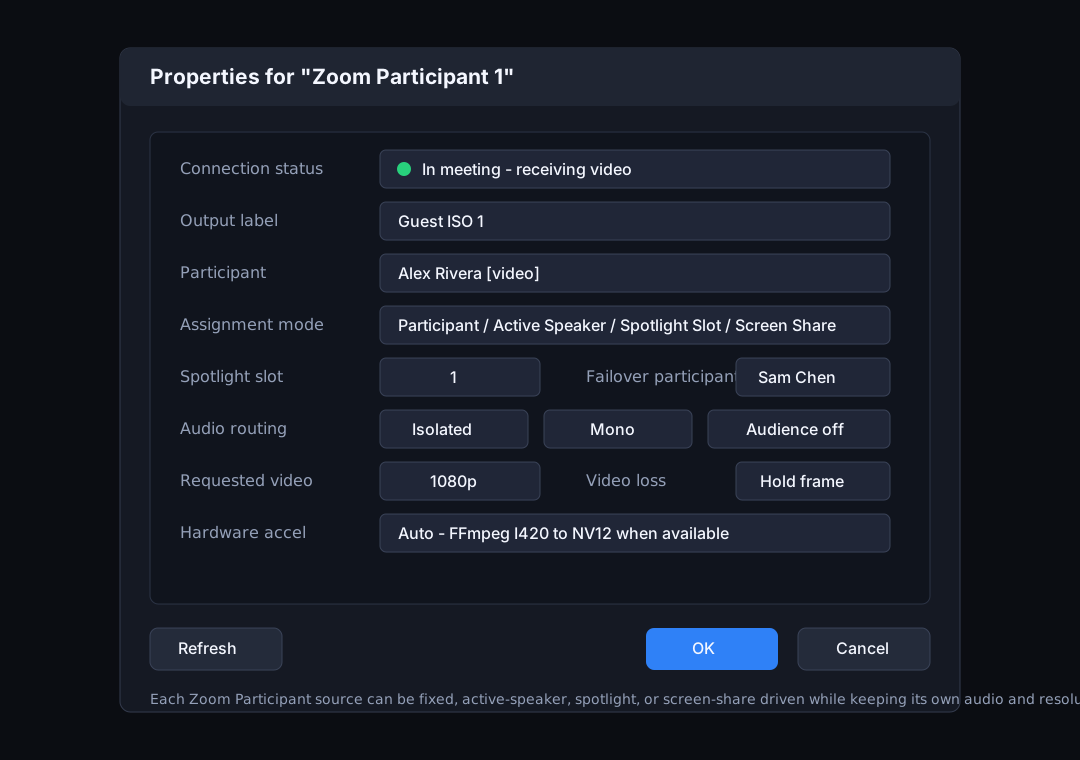
Zoom Participant Source Properties
| Property | Default | Description |
|---|---|---|
| Output Label | — | Label shown in the OBS Output Manager |
| Participant | — | Select from live roster |
| Follow active speaker | off | Automatically follow whoever is speaking |
| Switch sensitivity (ms) | 300 | New speaker must hold the floor this long before switching |
| Minimum hold time (ms) | 2000 | Stay on current speaker at least this long after switching |
| Video Resolution | 1080p | 360p / 720p / 1080p |
| On video loss | Hold last frame | Hold last frame or show black |
| Audio Channels | Mono | None / Mono / Stereo |
| Isolate Audio | off | Use per-user feed instead of meeting mix |
Zoom Participant Audio Source
| Property | Description |
|---|---|
| Participant | Select from live roster |
| Audio Channels | Mono / Stereo |
Zoom Interpretation Audio Source
| Property | Description |
|---|---|
| Language | Language name as reported by Zoom (e.g. English, Spanish) |
Auto ISO Recording
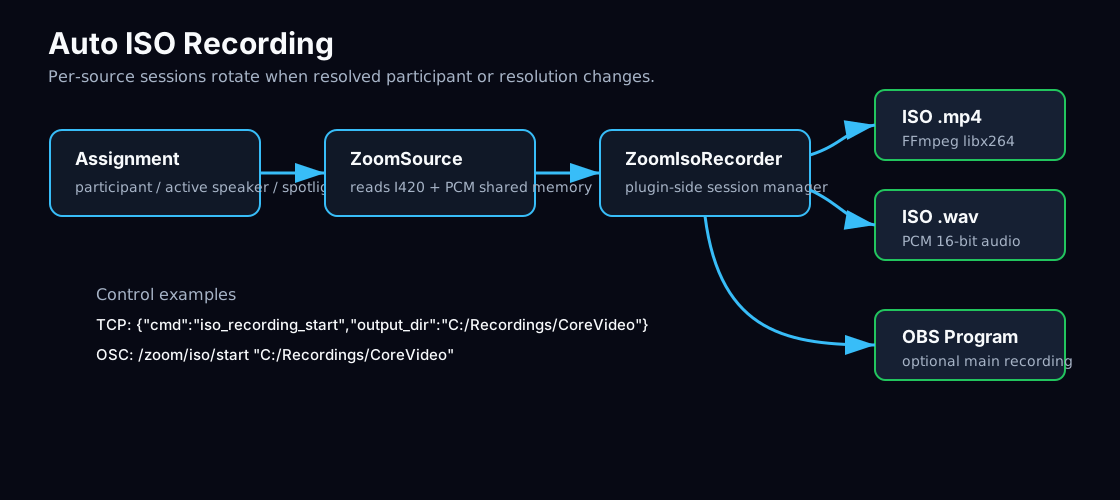
CoreVideo can record assigned participant media as separate ISO files while optionally starting the main OBS program recording. ISO recording is owned by the OBS plugin process: the engine remains minimal and only publishes raw I420 video and PCM audio through the existing IPC and shared-memory path.
OBS ISO Recorder Panel
Open Tools → Zoom ISO Recorder to manage ISO recording from a separate OBS dock. The panel lets operators choose an output folder, set or test the FFmpeg executable, choose whether to also control OBS program recording, start/stop ISO recording, and monitor active ISO sessions with source, participant, resolution, frame counts, audio chunk counts, and output file paths. Recently completed sessions remain visible after stop so operators can confirm completed MP4/WAV outputs before opening the folder.
The panel uses the same ZoomIsoRecorder backend as the TCP and
OSC APIs and persists its folder, FFmpeg path, and program-recording toggle
in OBS global settings. If a selected hardware encoder is unavailable in
the FFmpeg build, CoreVideo falls back to libx264 when
available and reports the requested encoder, actual encoder, and fallback
state in the panel and TCP status payload.
Start Recording
{
  "cmd": "iso_recording_start",
  "output_dir": "C:/Recordings/CoreVideo",
  "ffmpeg_path": "ffmpeg",
  "record_program": true
}
Check Status
{ "cmd": "iso_recording_status" }Stop Recording
{ "cmd": "iso_recording_stop" }OSC Controls
| Address | Arguments | Action |
|---|---|---|
/zoom/iso/start | output_dir, optional record_program | Starts ISO recording |
/zoom/iso/stop | none | Stops ISO recording |
See the Core Plugin Functionality guide for complete TCP examples, OSC examples, troubleshooting notes, and the plugin media pipeline diagrams.
Modern UI (Phase 1)
CoreVideo applies its own scoped Qt stylesheet and custom widgets to the plugin
UI, giving it a consistent dark-theme appearance without interfering with OBS's
global QApplication stylesheet.
CoreVideo Stylesheet (cv-style.h)
Applied widget-level via cv_stylesheet(). Covers group boxes,
buttons (with role variants), line edits, combo boxes, tables, and scroll bars.
| Button role property | Appearance | Use |
|---|---|---|
role = "primary" | Zoom-blue accent fill | Affirmative actions: Join, Apply, Save |
role = "danger" | Red tint fill | Destructive or exit actions: Leave, Delete, Disconnect |
| (default) | Neutral dark fill | All other buttons |
CvStatusDot
A QWidget subclass that draws a coloured status indicator using
QPainter rather than a Unicode bullet character.
In transitional states (Joining, Leaving, Recovering) a QTimer
drives a sinusoidal pulse glow animation.
| MeetingState | Colour | Animation |
|---|---|---|
| Idle | Grey #555 | Static |
| Joining | Amber #d29922 | Pulse glow |
| InMeeting | Green #3fb950 | Static |
| Leaving | Amber #d29922 | Pulse glow |
| Recovering | Orange #e36209 | Pulse glow |
| Failed | Red #f85149 | Static |
CvBanner
A compact QFrame-derived notice strip. Supports three kinds:
Info (blue), Warning (amber), Error (red).
An optional underlined action button on the right emits actionClicked().
Used in ZoomDock as a first-run prompt to configure SDK credentials.